


How to Use Negative Prompts to Clean Up Your Kre8or.ai Images
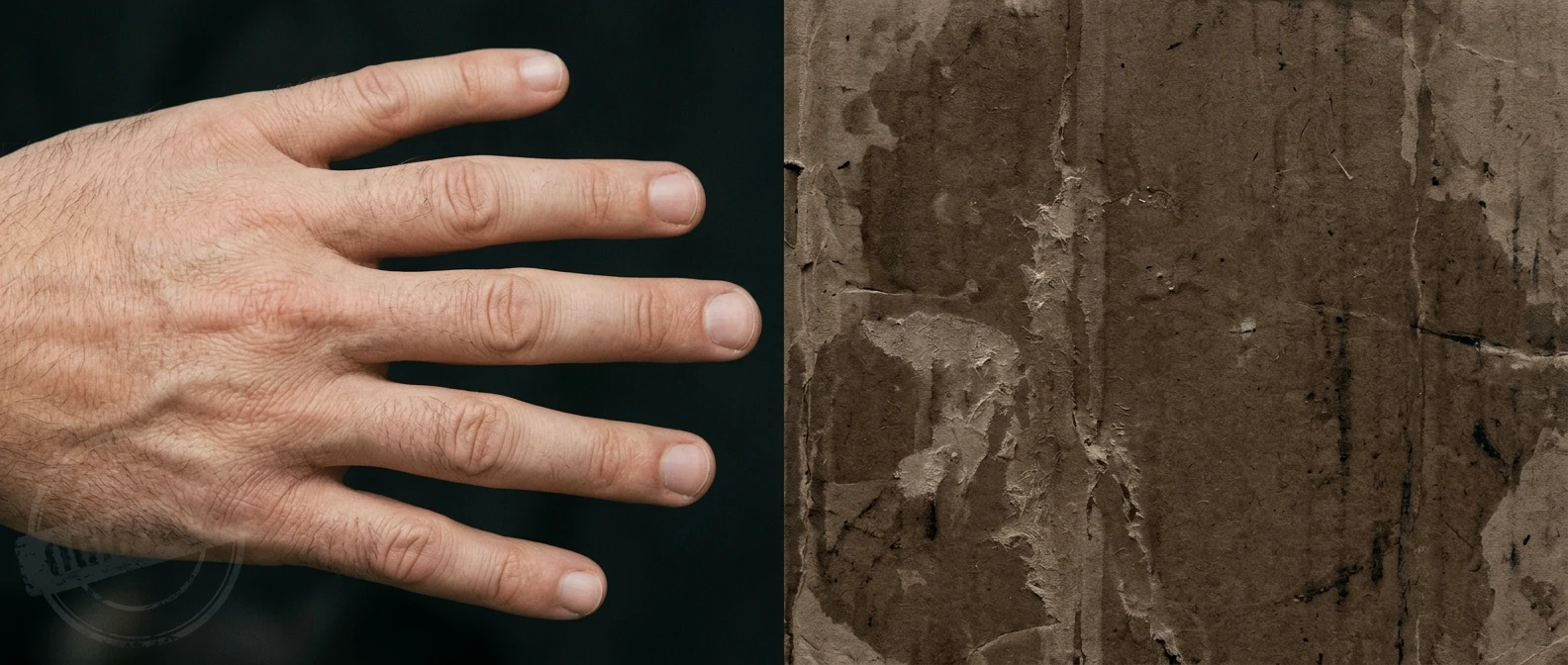
Every aspiring AI artist hits this wall eventually: the positive prompt is detailed, specific, well-structured, and the image still comes back with six fingers on one hand, a watermark ghost floating in the corner, or a background that looks like wet cardboard. The instinct is to rewrite the positive prompt again, adding more adjectives, more style references, more detail. That usually doesn’t fix it. What fixes it is a negative prompt, and most guides on prompt writing barely mention it.
This piece covers the other half of the prompt box: how to tell kre8or.ai what to leave out, so the image you already know how to ask for actually comes back clean.
Why a strong prompt still produces messy kre8or.ai images
A positive prompt tells the model what to build toward. It does not tell the model what to avoid, and generative models default to filling in gaps with whatever patterns showed up most often in similar training images. That’s where the extra fingers, the mangled text, and the smudged backgrounds come from: they’re common patterns the model reaches for when it isn’t told not to.
Think of it like giving someone directions to a house but never mentioning the potholes in the road. They’ll still get there, but the ride will be rougher than it needed to be. A detailed positive prompt narrows down the destination. A negative prompt smooths out the road.
This is also why two artists can write nearly identical positive prompts and get very different image quality. The difference usually isn’t a better positive prompt. It’s a negative prompt doing quiet cleanup work in the background.
What negative prompts actually control, and what they can’t fix
Negative prompts work by lowering the probability that certain elements show up in the render. They’re good at suppressing:
- Recurring visual artifacts (extra limbs, warped hands, duplicated features)
- Unwanted style bleed (cartoonish rendering when you wanted photorealism, or vice versa)
- Background clutter and noise
- Text, watermarks, and signature-like marks the model tries to insert
- Low-detail or blurry renders
What they can’t do is fix a positive prompt that’s vague about composition or subject. If your positive prompt doesn’t specify a pose, angle, or setting, no negative prompt will supply that missing information. Negative prompts remove unwanted noise; they don’t add intended signal. That part is still the job of your positive prompt, which is covered in more depth in Graphic Prompts That Turn Any Idea Into Art on kre8or.ai.
So the two prompts work as a pair. One builds the image you want. The other clears away the image you don’t.
The artifacts worth excluding on almost every generation
Some problems show up often enough across subjects and styles that they’re worth excluding by default, almost like a base layer you build every other negative prompt on top of. These tend to include:
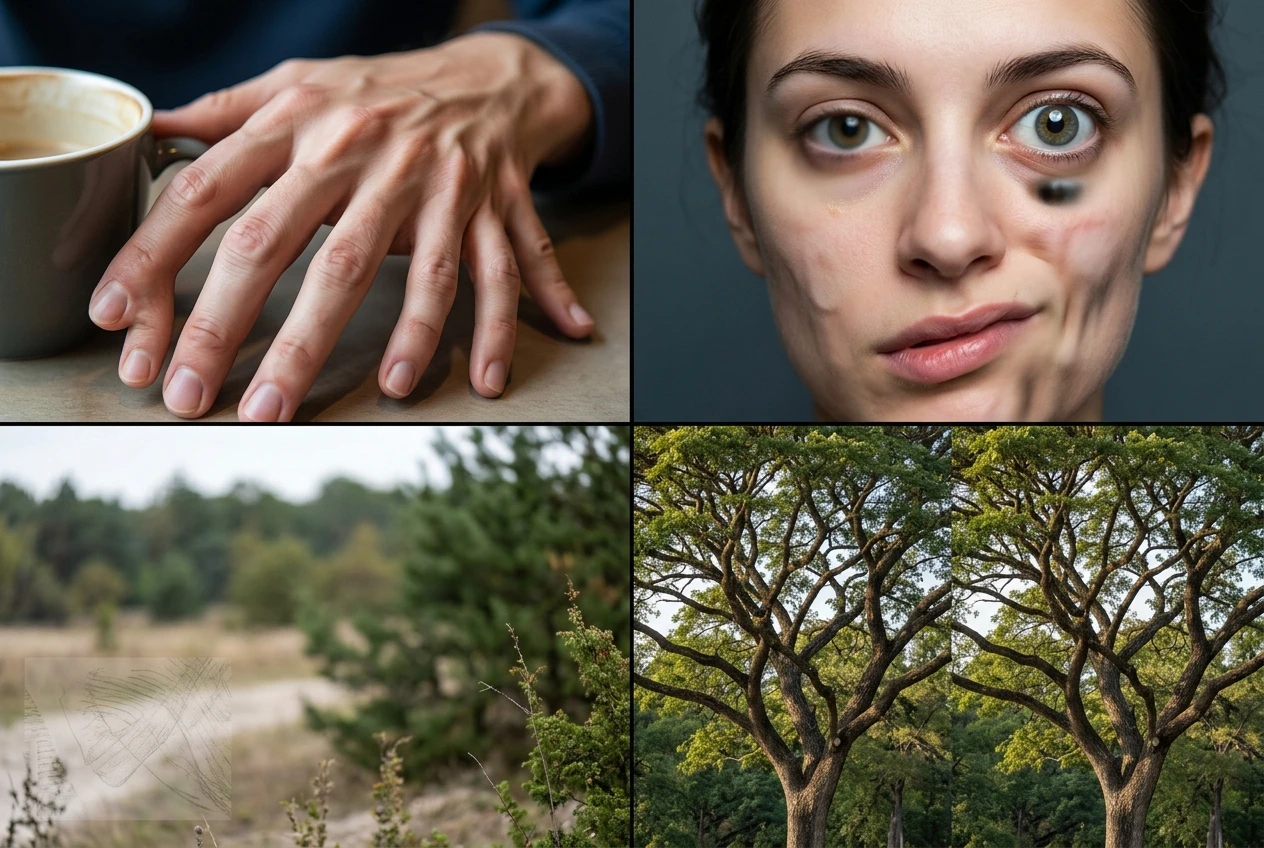
- Extra or malformed fingers, hands, and limbs
- Distorted or asymmetrical faces
- Watermarks, logos, and signature text
- Blurry, low-resolution, or out-of-focus renders
- Oversaturated or washed-out colors
- Duplicate objects or cloned elements in the frame
Keeping a short list like this on hand means you’re never starting a negative prompt from nothing. You add to it depending on the subject, but you rarely remove from it.
Building a negative prompt stack for portraits, landscapes, and objects
A negative prompt isn’t one-size-fits-all. The artifacts that ruin a portrait are different from the ones that ruin a landscape, so it helps to think in terms of a base layer plus a subject-specific layer.
Portraits tend to suffer from facial asymmetry, extra or fused fingers, mismatched eyes, and unnatural skin texture. A portrait-focused negative prompt should lean into these specifically:
extra fingers, fused fingers, missing fingers, asymmetrical face, cross-eyed, blurry eyes, plastic skin, overexposed skin, watermark, text, signature
If you’re working through portrait styles specifically, Cyberpunk Portraits in kre8or.ai: The Exact Prompt Syntax That Works pairs well with this kind of negative stack, since stylized portraits are especially prone to facial distortion when the style prompt is heavy.
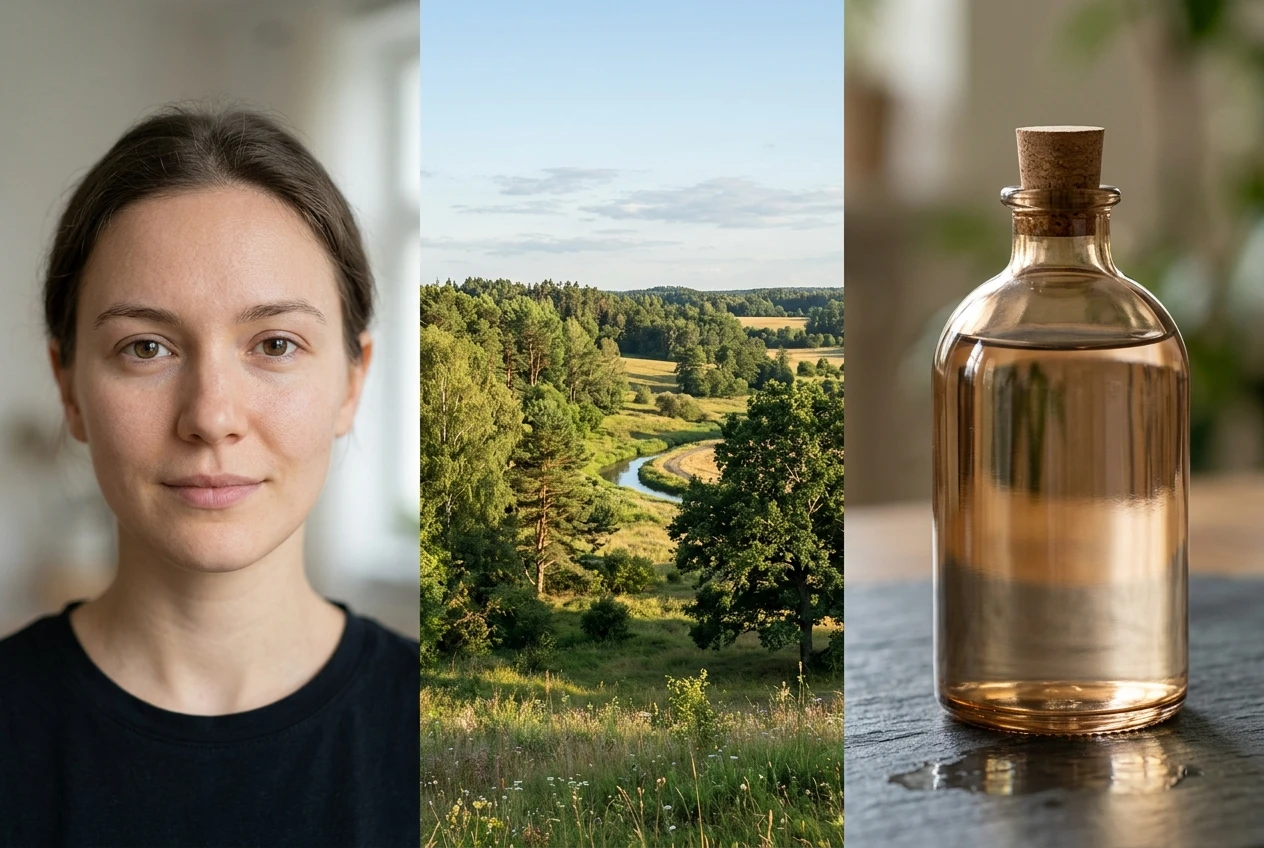
Landscapes rarely have hand or face problems, but they’re prone to muddy color blending, flat lighting, and repeated background elements (the same tree or rock shape cloned across the frame). A landscape negative stack looks more like:
blurry horizon, muddy colors, flat lighting, washed out sky, duplicate trees, duplicate rocks, low detail, text, watermark
Objects and product-style renders have their own failure pattern: warped proportions, inconsistent material texture, and reflections that don’t match the lighting in the rest of the image. A negative stack here might read:
warped proportions, inconsistent texture, mismatched reflections, blurry edges, extra parts, text, watermark
Notice that “text” and “watermark” show up in all three. That’s because they’re artifacts that show up regardless of subject matter, which is exactly why they belong in your base layer.
Layering negative prompts without accidentally canceling your positive prompt
Here’s where new users run into trouble. Negative prompts work by suppressing concepts, and if a negative term is too close to something in your positive prompt, the two instructions start fighting each other.
For example, if your positive prompt asks for “soft, dreamy lighting” and your negative prompt includes “blurry,” the model can get confused about where soft lighting ends and unwanted blur begins. The result is sometimes a render that looks flatter or sharper than intended, not because the negative prompt failed, but because it overlapped with a quality you actually wanted.
A few ways to avoid this:
- Be specific rather than broad. “Blurry eyes” is safer than just “blurry” if your positive prompt calls for soft background bokeh.
- Check for near-synonyms. If your positive prompt says “painterly,” don’t add “unrealistic” to your negative prompt. You’ll be undercutting your own style request.
- Test negative terms one at a time when troubleshooting. If a render looks off after adding five new negative terms, you won’t know which one caused it. Add them in small batches of two or three.
- Keep style words out of your negative prompt unless you mean to exclude a whole category. “Cartoon” in a negative prompt will aggressively push away anything stylized, which can hurt renders that wanted a slightly illustrative look.
The goal is a negative prompt that cancels noise without canceling intent. That takes a little testing, but the pattern becomes obvious fast once you’ve seen it happen once.
Telling whether a negative prompt helped or just changed the problem
This is the step most guides skip, and it’s the one that actually builds skill. Adding a negative prompt doesn’t always fix an image. Sometimes it just trades one problem for a different one, and if you don’t look closely, you’ll assume progress that didn’t happen.
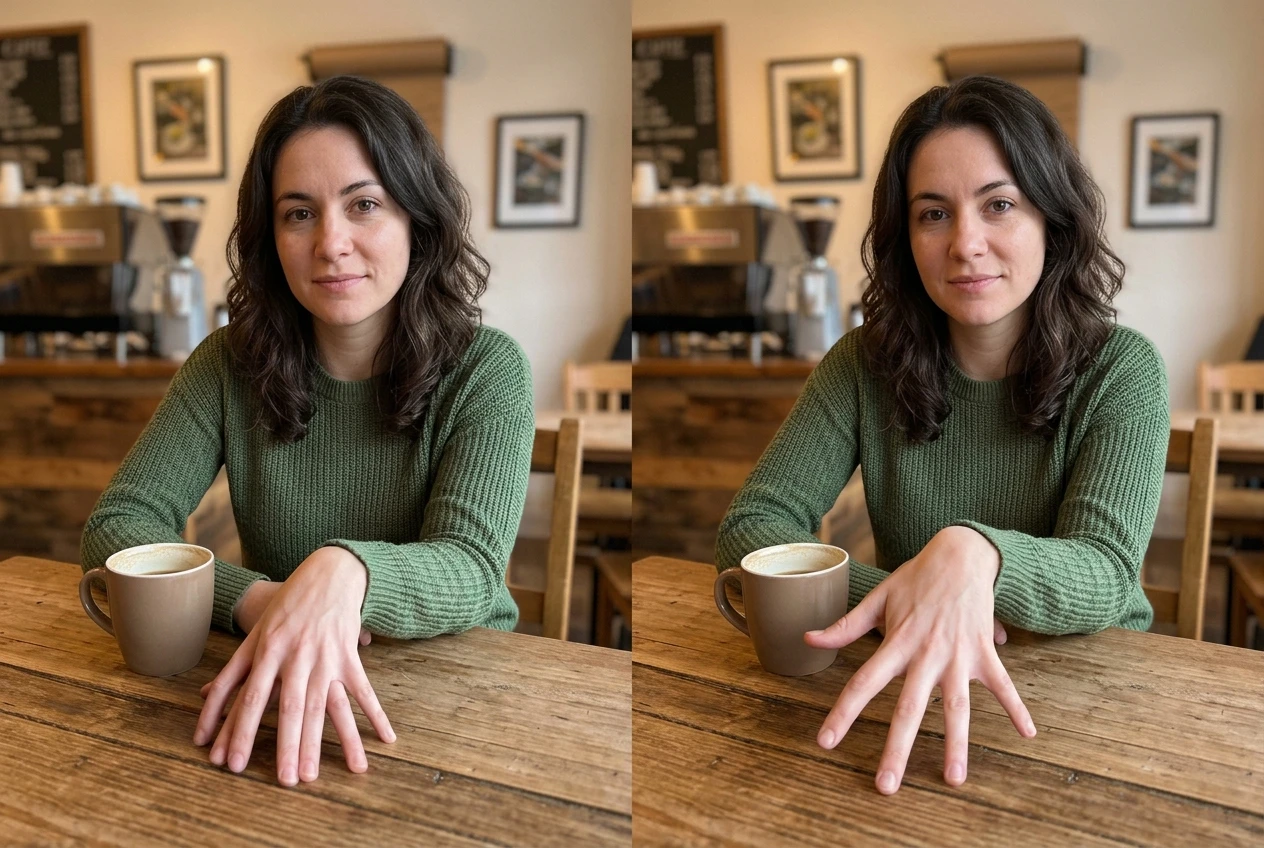
A reliable way to check: generate the same positive prompt twice, once without the negative prompt and once with it, keeping everything else identical. Then compare specifically for:
- Did the targeted artifact actually disappear, or just move (extra fingers gone, but now the hand is oddly positioned)?
- Did image sharpness or detail drop as a side effect?
- Did the color palette or lighting shift in a way you didn’t ask for?
- Did the composition change in ways unrelated to the artifact you were fixing?
If the negative prompt solved the original problem without introducing a new one, keep it in your stack. If it solved one thing and broke another, that’s a signal to narrow the term rather than removing it. “Extra fingers” is often more reliable than the broader “deformed hands,” because the broader term pushes the model to rework more of the hand than necessary.
Keeping a simple before-and-after habit, even informally, is what turns a list of negative prompt terms into a system you trust rather than a list you’re guessing with.
A copy-paste negative prompt starter kit for your next kre8or.ai session
Here’s a base kit you can drop into kre8or.ai as-is and adjust from there:
Universal base layer (use on almost everything):
extra fingers, fused fingers, missing fingers, extra limbs, deformed hands, asymmetrical face, blurry, low detail, watermark, text, signature, duplicate objects, oversaturated
Add for portraits:
cross-eyed, mismatched eyes, plastic skin, unnatural skin texture, overexposed skin
Add for landscapes:
muddy colors, flat lighting, washed out sky, duplicate trees, duplicate rocks, blurry horizon
Add for objects and products:
warped proportions, inconsistent texture, mismatched reflections, blurry edges, extra parts
Start with the universal base layer on every render, then add the subject-specific line that matches what you’re generating. From there, adjust based on what you actually see come back, using the single-term testing approach above to figure out which additions are earning their place.
Negative prompts aren’t a backup plan for when a positive prompt fails. They’re a standard part of getting a clean, usable image the first time, and once you have a reliable stack built, you’ll stop rewriting the same positive prompt five times hoping the glitch disappears on its own.
Open a kre8or.ai account and test this negative prompt kit on your next render to see the difference in one generation.