


How to Upscale Your kre8or.ai Art Without Losing the Detail You Worked For
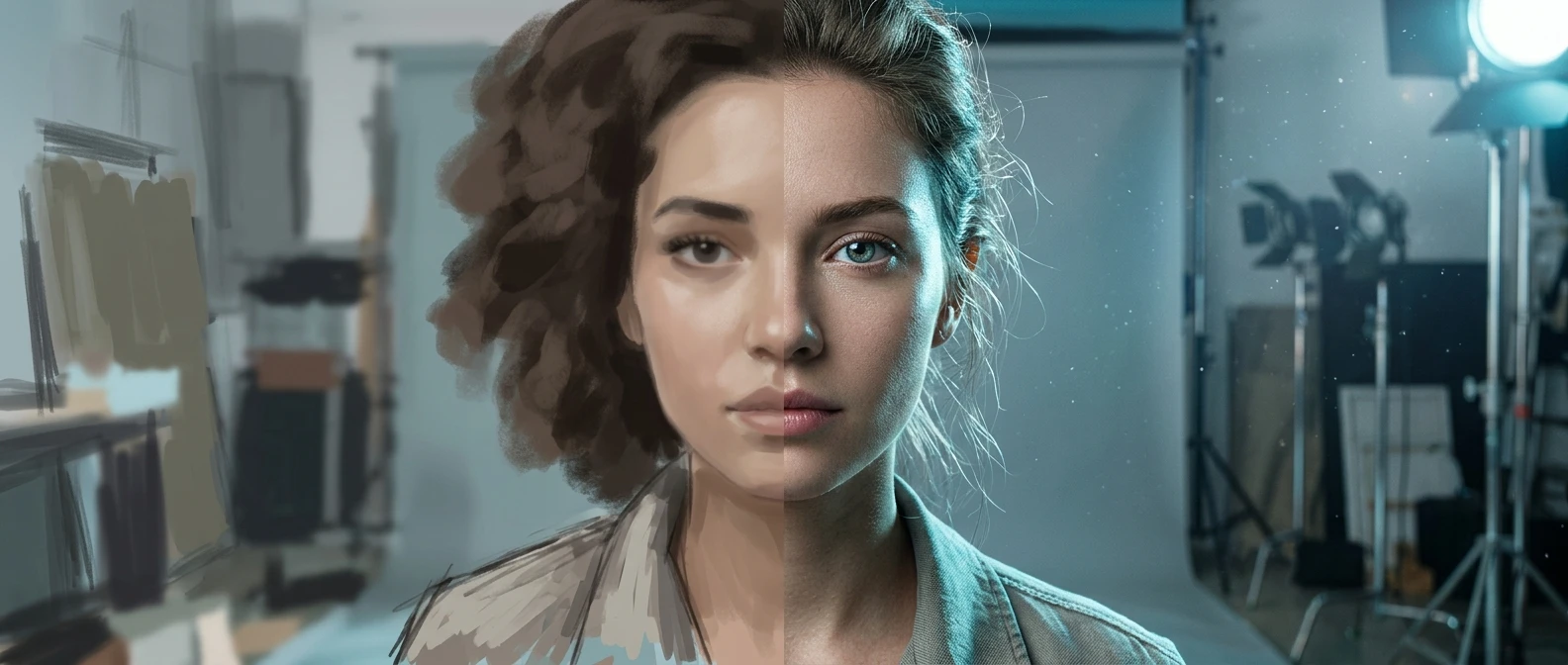
A finished prompt gets you a good image. It does not get you a finished one. The gap between those two things is where upscaling lives, and most people treat it as a single button they press on the way out the door. That habit is why so much AI art looks strong at thumbnail size and falls apart the moment someone zooms in.
This piece treats upscaling as a separate skill from prompting, because inside kre8or.ai it genuinely is one. The settings you choose after your render decide whether a face stays sharp, whether fabric keeps its weave, and whether the final file can survive being printed or stared at on a large screen. Here is how to make those choices deliberately instead of by default.
Why Your First Render Is Never Your Final Render
A first render is a draft at a working resolution, not a finished asset. Most generation engines, kre8or.ai included, produce images at a size built for speed and iteration, not for output. That resolution is fine for judging composition, color, and whether the prompt did what you wanted. It is not fine for a portfolio piece or a print.
The detail that looks acceptable in a 1024 pixel square render often reveals its limits the moment you scale it. Skin texture turns waxy. Hair strands blur into a mass. Small background elements, like window frames or jewelry, smear into suggestion rather than shape. None of that means the render failed. It means the render was never meant to be the last step.
Treating the first output as a draft changes how you work. You stop chasing a perfect single click and start thinking about the image in two stages: the stage where you get the content right, and the stage where you get the resolution right. Upscaling is that second stage, and it has its own logic.
Reading kre8or.ai’s Upscale Settings Before You Click
Before you touch the upscale panel, look at what each setting is actually controlling. The scale factor decides how many times larger the output becomes. The denoise or detail strength setting decides how much the upscaler is allowed to invent or smooth over as it enlarges the image. These two settings pull against each other, and most quality problems come from getting that balance wrong rather than from picking the wrong scale.
A low detail strength plays it safe. It enlarges pixels without adding much new information, which keeps the image close to the original but can leave it looking soft, almost like a photo blown up past its native resolution. A high detail strength lets the upscaler reconstruct texture and edges more aggressively, which can sharpen a face beautifully or, just as easily, invent texture that was not in your original composition: extra wrinkles, odd skin patterns, warped jewelry.
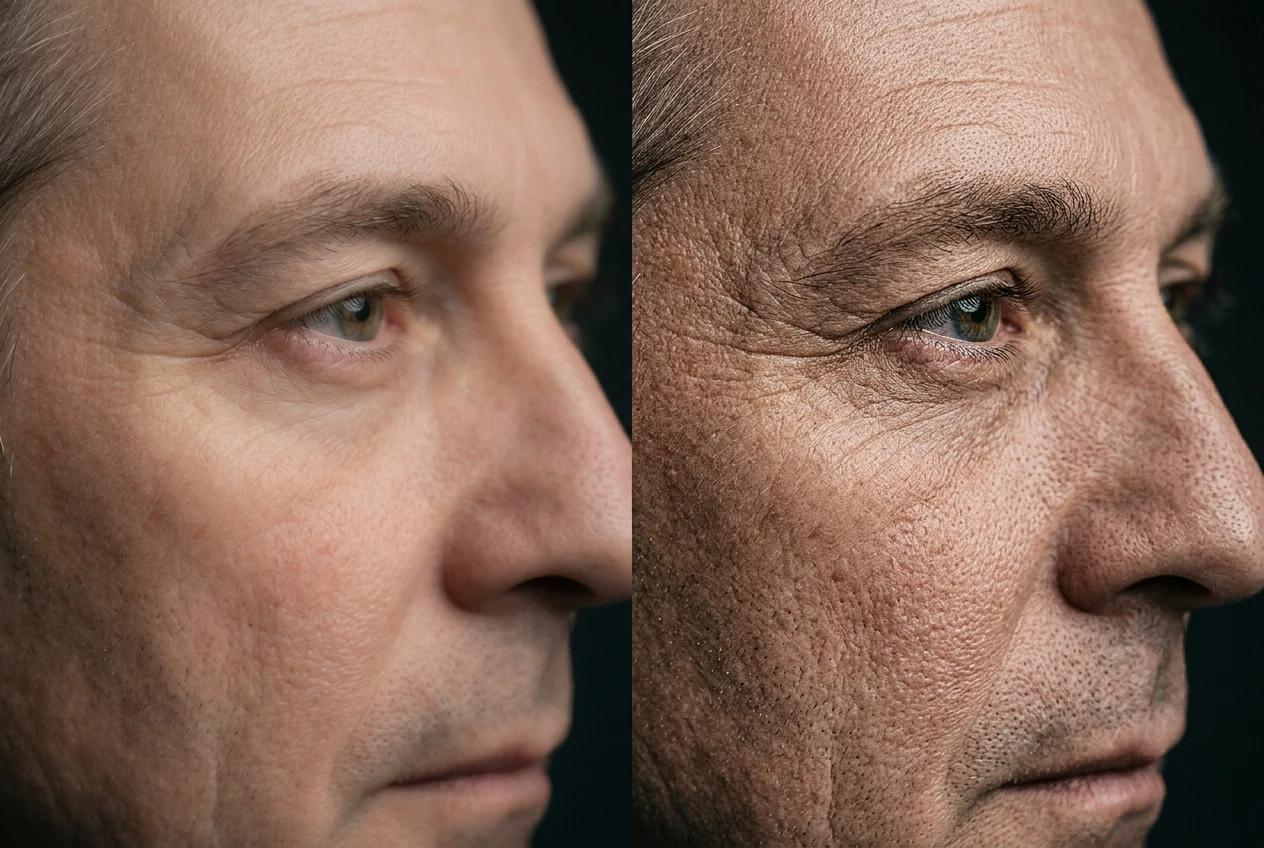
The fix is not a universal setting. It is matching the strength to the content. Flat, simple backgrounds tolerate a higher detail strength without issue. Faces and hands need a more conservative setting, because that is where invented detail is most visible and most damaging. Run a quick test at a low setting and a higher one on the same image before committing to a batch, and compare them side by side at full size rather than trusting the preview thumbnail.
Choosing the Right Scale Factor for Screen, Portfolio or Print
The right scale factor depends entirely on where the image is going, and deciding that before you upscale saves you from redoing the work later.
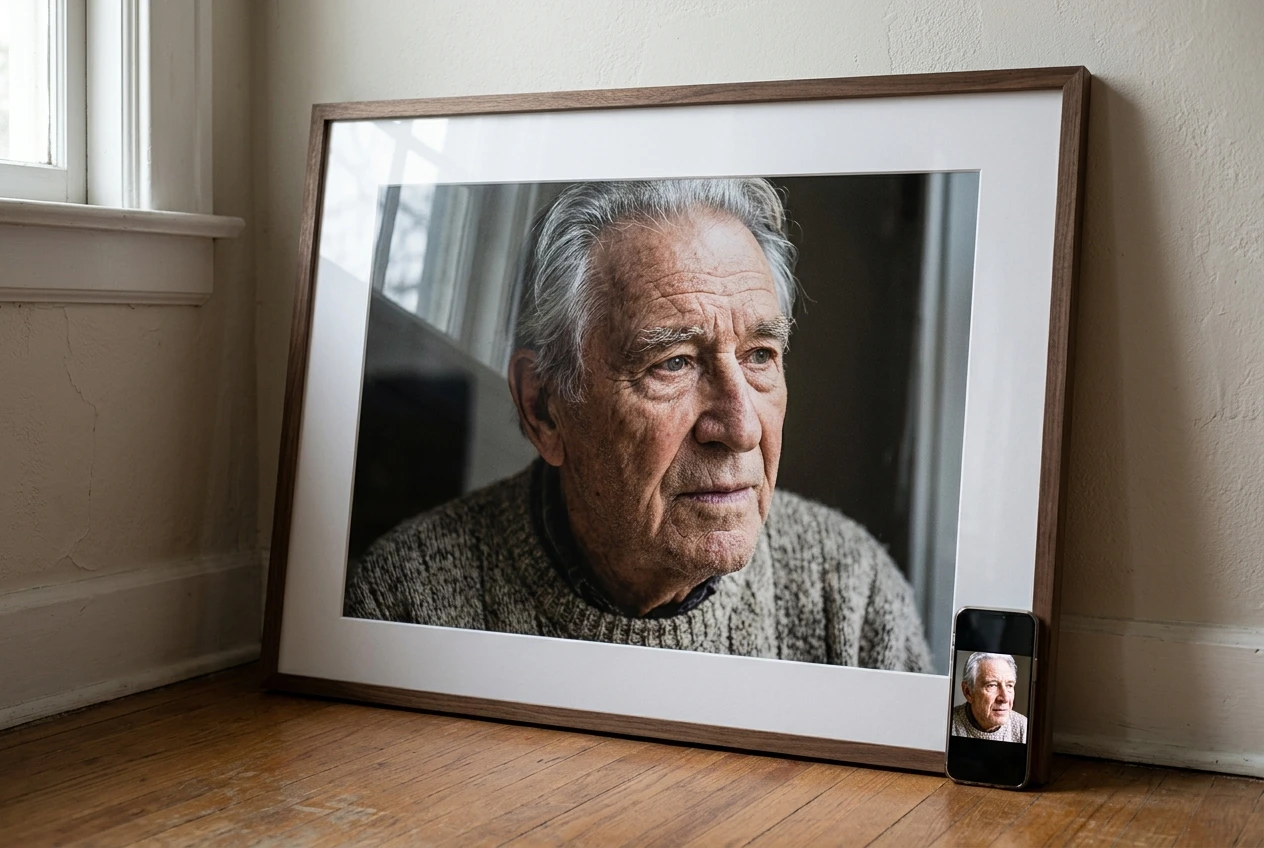
- Screen and social use rarely needs more than a 2x upscale. Most phone and desktop screens cannot resolve detail beyond that, so pushing further just adds file size without adding anything the viewer can see.
- Portfolio pieces, especially ones displayed full size on a personal site, benefit from a 2x to 4x upscale. This is the range where fine detail becomes visible without introducing the kind of artifacting that shows up at extreme scales.
- Print is the one case where you should scale past what looks necessary on screen. Print resolution standards assume far more pixels per inch than any monitor does, so an image that looks plenty sharp on your laptop can look soft on paper. A 4x upscale or higher is often the realistic floor for anything going to a physical print, and it is worth checking the exact pixel dimensions against your print size before you commit.
Picking the scale factor first, before you touch detail strength, keeps the rest of the process focused. You are no longer upscaling to see what happens. You are upscaling to hit a target.
Fixing Detail Loss in Faces, Hands and Fine Textures
Faces and hands are where upscaling quality is judged hardest, because human eyes are extremely good at spotting when either one looks slightly wrong. A background texture can be a little soft and nobody notices. A face that is a little soft reads as unfinished immediately.
If a face loses definition after upscaling, the detail strength is usually too low for that region, or too high and overcorrecting into something uncanny. Rather than adjusting the whole image, look for a face or region specific enhancement option in kre8or.ai’s upscale settings. Applying a slightly higher detail pass just to the face, separate from the rest of the image, often solves a problem that a global adjustment cannot.
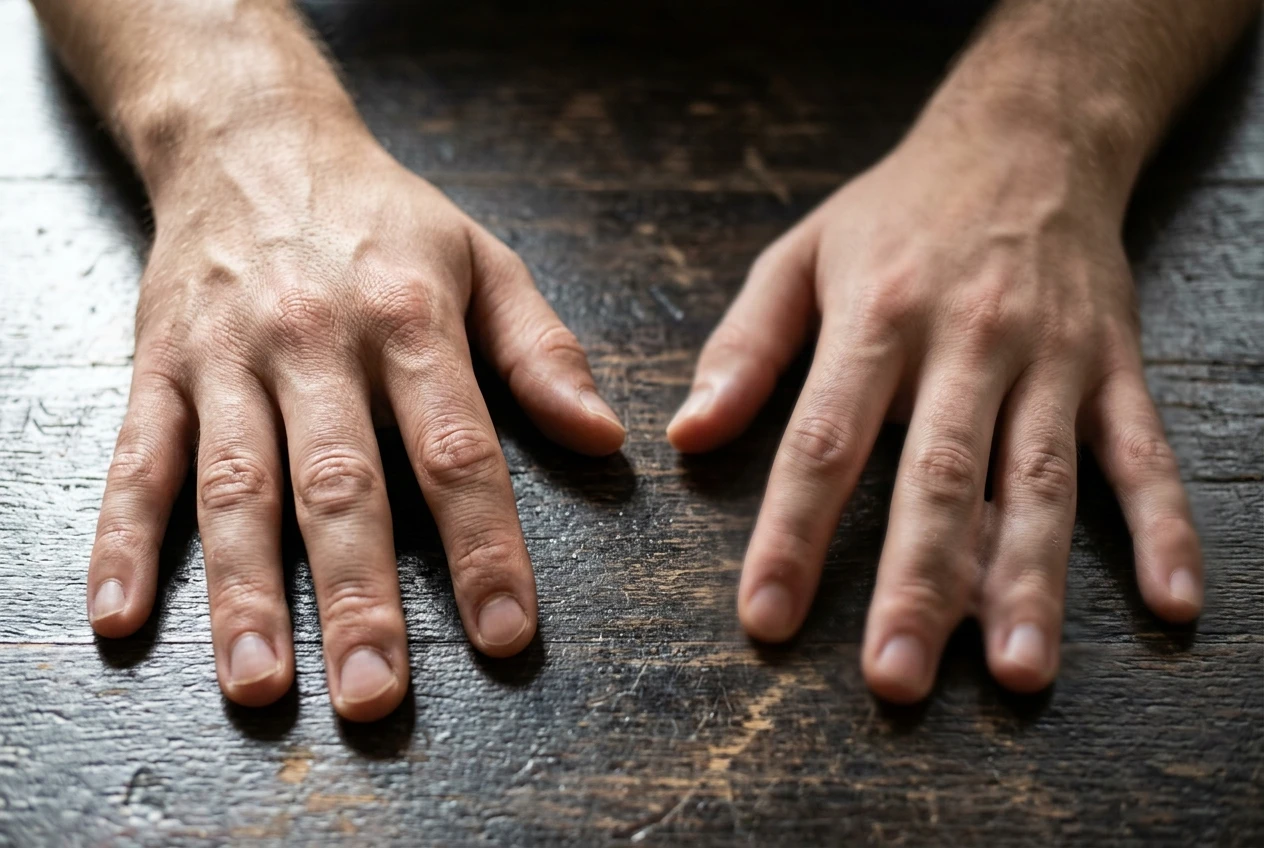
Hands carry their own risk. Upscalers trained mostly on faces sometimes treat fingers as texture rather than structure, which can soften joints or blur the separation between fingers. If hands are a visible part of the composition, it is worth upscaling at a slightly lower overall strength and accepting a touch less sharpness everywhere else in exchange for hands that still read correctly.
Fine textures, fabric weave, hair strands, fur, benefit from mid range detail strength more than extreme settings. Pushing too hard here tends to turn organic texture into a repeating pattern that looks synthetic rather than refined. A moderate setting that respects the original texture usually beats an aggressive one that tries to manufacture more detail than was there to begin with.
Pairing a Strong Base Prompt With a Clean Upscale
Upscaling cannot invent detail your prompt never asked for. It can only clarify and enlarge what the render already contains. That is why the two stages are connected even though they are separate skills: a vague prompt produces a vague render, and no amount of careful upscale settings will give it the structure it needed from the start.
If you have not already worked through prompt construction for the piece you are finishing, it is worth looking at how to write AI art prompts that actually work, since the specificity you build in at that stage is exactly what an upscale pass has to work with later. A prompt that nails lighting direction, material, and composition gives the upscaler real information to sharpen. A generic prompt gives it very little, and the upscale settings end up compensating for a problem that started several steps earlier.
Batch Upscaling Without Burning Through Your Credits
Batch upscaling is efficient, but it is also where credits disappear fastest if you are not deliberate about it. The instinct to run every variant of a session through the same upscale settings makes sense, but it treats images that need different handling as if they were identical.
Before running a batch, sort your renders into rough groups: ones with faces or hands in focus, ones that are mostly texture or background, ones headed for print versus screen. Apply settings suited to each group rather than one blanket setting for everything. This takes a few extra minutes of sorting but avoids spending credits upscaling images at a strength or scale that was never right for them in the first place.
It also helps to upscale your strongest candidates first, one at a time, and check the result in full size before committing the rest of the batch to the same settings. A setting that looked right in a quick preview can reveal problems once you see it at full resolution, and catching that before a batch run saves you from paying for the same mistake across a dozen images.
When to Upscale and When to Just Re-Prompt From Scratch
Upscaling fixes resolution. It does not fix composition, pose, or a face that was wrong in the original render. If the underlying image has a structural problem, more pixels will only make that problem easier to see.
A useful rule: if the issue is softness, lack of texture, or a file that is too small for its intended use, upscale. If the issue is an anatomy error, a composition that does not work, or a face that reads as off in a way no detail setting will fix, re-prompt instead. Running a flawed render through an aggressive upscale rarely rescues it, and it can spend credits confirming a problem you already suspected.
A Pre-Export Checklist for Every Finished Piece
Before you call an image finished, run it through a short checklist:
- Does the scale factor match where this image is going, screen, portfolio, or print?
- Does the face hold its detail at full size, with no waxy smoothing or invented texture?
- Do hands, if present, still read as correctly structured?
- Do fine textures look organic rather than repetitive or synthetic?
- Does the file’s pixel dimension actually meet the requirement for its intended use, rather than just looking right in a preview?
Open kre8or.ai and run your next upscale against this checklist. You will see which settings actually earn their credits on your own work.