


Turn Any Photo Into a Fantasy Character With kre8or.ai
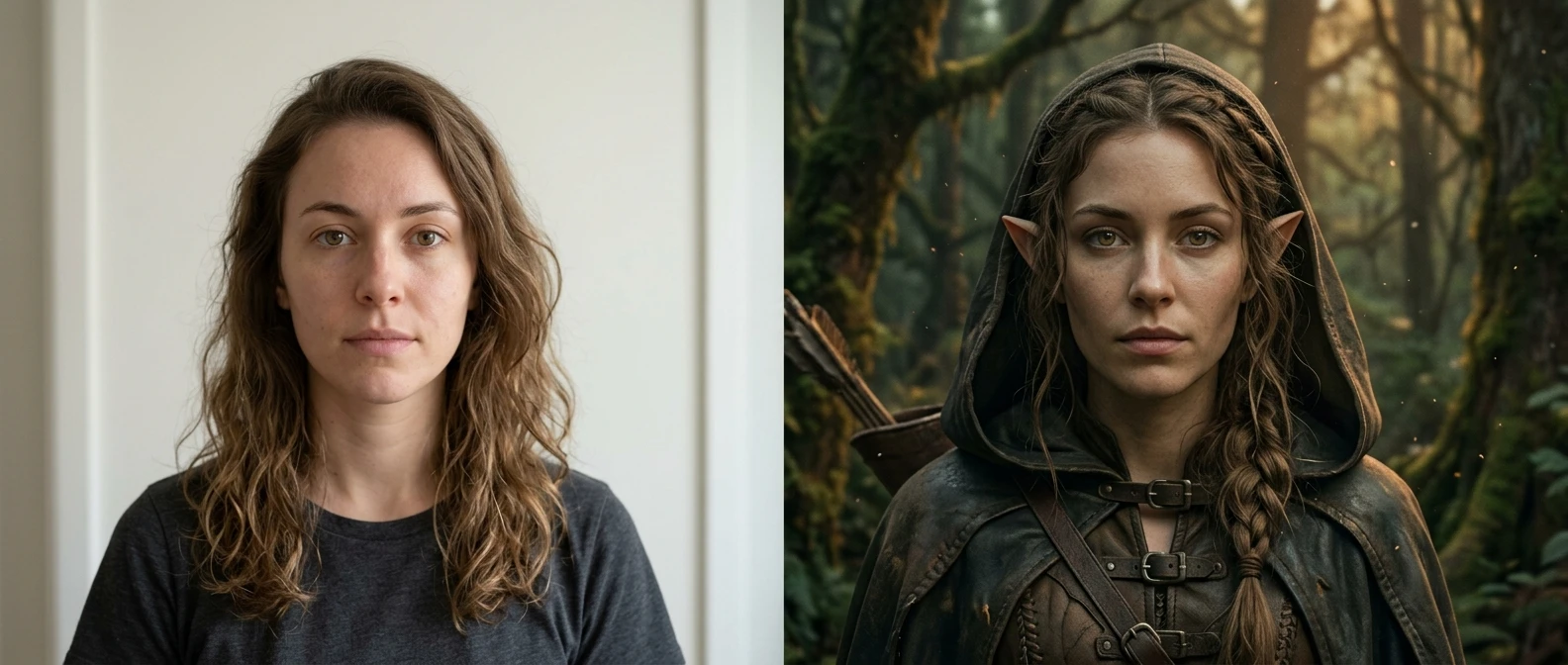
Most people open an AI art tool, stare at the blank prompt box, and type something like “elf warrior, detailed armor, fantasy art.” The result is often beautiful and also a complete stranger. None of your features survive the trip from text to image, because text never had your features to begin with.
Starting from a photo flips the entire process. Instead of describing a face and hoping the model guesses right, you hand it the face directly and ask it to dress that face up. The output keeps your bone structure, your eyes, your expression, because those things were never up for negotiation in the first place. This guide walks through exactly how to do that on kre8or.ai, from picking the source photo to fixing a result that drifted too far from you.
Why starting from a photo beats starting from a blank prompt
A text prompt has to build a face from nothing. Every word you add, “high cheekbones,” “almond eyes,” “strong jaw,” is a guess that the model interprets through millions of training images that have nothing to do with you. Stack enough of those guesses together and you get a convincing fantasy character who happens to look like nobody in particular.
An uploaded photo skips that guessing entirely. The model already has your actual bone structure, your actual eye shape, your actual skin tone to work from. Its job shifts from “invent a face that matches this description” to “keep this face and change the costume, the setting, and the lighting around it.” That’s a much easier, much more reliable task, and it’s why photo-to-character results hold a likeness that pure text prompts almost never do.
This also means your prompt writing gets simpler. You’re not spending words trying to pin down a face. You’re spending them on the fantasy layer: the armor, the ears, the glow of magic around your hands. The face is handled. You just have to stop the transformation from overwriting it.
Picking the right photo: lighting, angle, and background that transform cleanly
Not every photo in your camera roll makes a good starting point. The model works best when it can clearly separate your face from everything around it, and when the lighting on your face is simple enough to survive being repainted into a forest or a throne room.
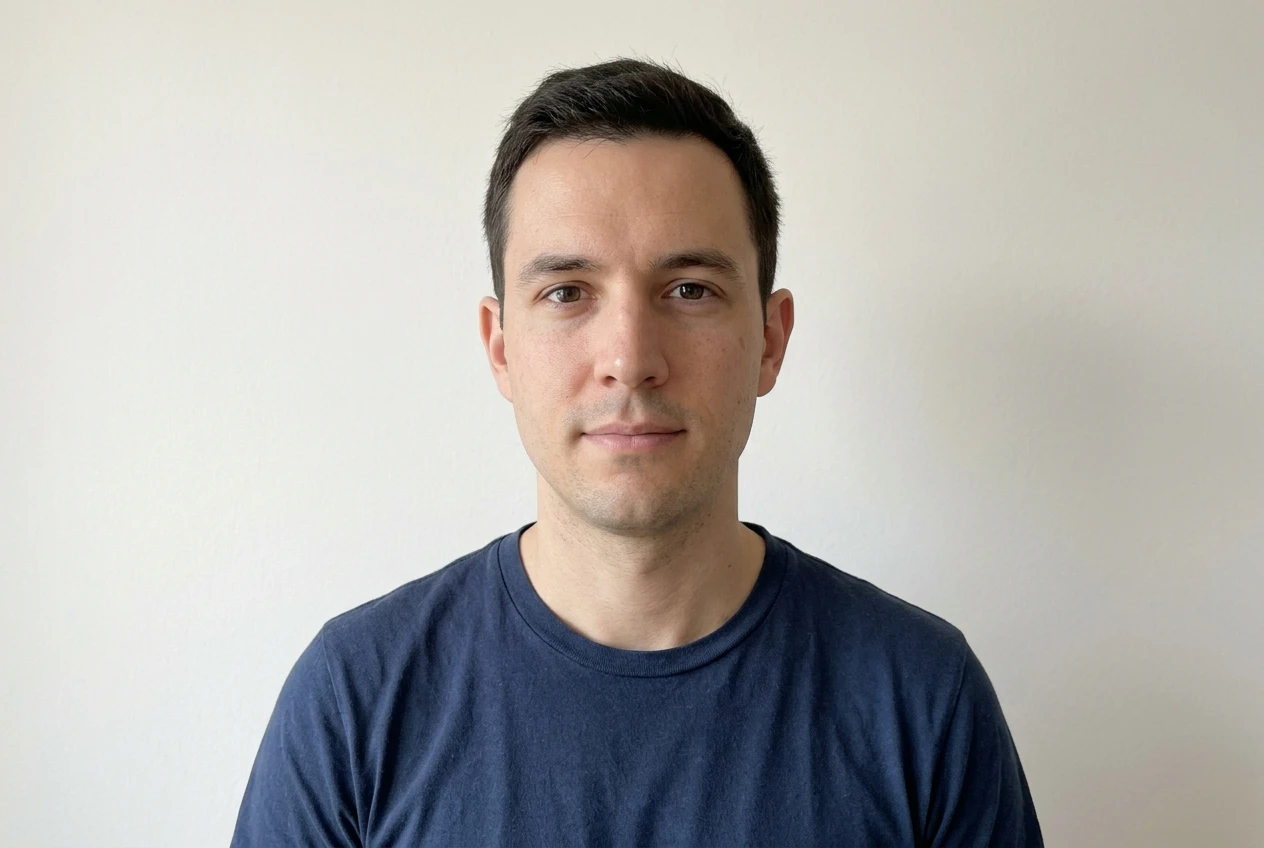
Look for a photo with these traits:
- Even, front-facing or slight three-quarter lighting. Hard shadows across half your face, like a photo taken against a bright window, give the model less to work with and often get smoothed away along with your actual features.
- A straight-on or slight angle, not a steep tilt. Extreme angles, looking up at the camera or sharply down, distort proportions that are already hard to preserve. A near-level angle keeps your face in a shape the model can hold onto through the transformation.
- A plain or uncluttered background. Busy backgrounds give the model competing detail to interpret, and some of that detail can bleed into the generated scene in strange ways. A background that’s just a wall, a car seat, or an outdoor blur is easier for the model to replace cleanly with a forest, a castle, or a battlefield.
- A neutral or relaxed expression. A big open-mouth laugh or an extreme squint changes your proportions enough that the model may lock onto the expression instead of your underlying features. A calm, natural expression gives it a more stable target.
- Sharp focus on the face. Motion blur or soft focus removes the exact detail, the fine lines around your eyes, the shape of your eyebrows, that keeps the result looking like you instead of a generic fantasy face with your coloring.
A simple, well-lit headshot or chest-up photo, the kind you might already have from a phone camera in decent daylight, almost always outperforms a dramatic, moody shot for this purpose. Save the dramatic lighting for after you’ve nailed the likeness.
The upload settings that keep your actual face intact
Once you’ve picked the photo, the settings you choose when you upload it matter as much as the photo itself. This is the part most people skip, and it’s the part that decides whether you get a recognizable fantasy version of yourself or a fantasy stranger who happens to share your haircut.
When you upload your photo to kre8or.ai’s image-to-image tool, you’ll typically see a slider or setting that controls how much the model is allowed to change. Think of it as a dial between “barely touch this photo” and “use this photo only as loose inspiration.” For character transformations where keeping your face matters, you want that dial set low to moderate, not maxed out. A setting that’s too aggressive treats your photo the same way a text prompt treats an idea: as a rough starting point to be reinvented, not a face to be preserved.
If kre8or.ai offers a face-lock, likeness, or identity-preservation option alongside the main strength slider, turn it on. This setting specifically tells the model to prioritize keeping facial structure consistent even while it repaints the clothing, background, and lighting around it. It’s the single most useful switch for this kind of work, and it’s worth testing a couple of generations to see how it affects your specific photo before you commit to a full prompt.
Crop your photo tight around your head and shoulders before uploading, if the tool allows it. A tighter crop gives the model a clearer, higher-resolution view of your actual face to work from, rather than spending its attention on background detail it’s about to replace anyway.
Finally, resist the urge to write a long, detailed prompt about your own face. Phrases like “sharp jawline, green eyes, freckles” are redundant when the photo already shows the model your jawline, your eyes, and your freckles, and sometimes those extra words compete with the photo instead of reinforcing it. Let the photo do that job. Save your words for the fantasy layer.
Writing the fantasy layer: armor, ears, and magic over your features without losing the likeness
This is where the actual creative work happens, and it’s also where most likeness gets lost if you’re not careful. The trick is to describe additions to your face and body, not replacements of them.
Think in terms of layers you’re adding on top of what’s already there, rather than new features you’re asking the model to swap in:
- Armor and clothing sit on the body, not the face, so they’re the safest additions. Describe materials and style freely: “engraved steel pauldrons,” “weathered leather chest plate,” “flowing dark green cloak.” None of this touches your facial structure, so it’s low risk for likeness and a good place to spend most of your descriptive detail.
- Ears are trickier because elf or fae ears sit right at the edge of the face. Describe them as an addition rather than a redrawing of the whole head: “pointed elf ears” reads as a small modification, while heavy language about reshaping the whole skull or face invites the model to rework more than you want. Keep the rest of the face description minimal and let the photo carry it.
- Magic effects, glowing eyes, a faint aura, light trailing from the hands, work best when you describe them as effects layered over the existing face and body rather than as changes to the face underneath. “Faint blue glow around the eyes” keeps the eye shape; “eyes transformed into glowing orbs” risks losing it.
A useful habit is to put your fantasy details first in the prompt and keep any facial language sparse and late, almost an afterthought, since the photo is already doing the heavy lifting there. If you want a deeper breakdown of how word order and emphasis affect what a model prioritizes in a prompt, the general approach in how to write AI art prompts that actually work applies here too, even though that guide starts from text and this one starts from a photo.
Keep each generation focused on one costume idea at a time. Asking for armor, wings, glowing runes, a weapon, and a changed hairstyle all in one prompt gives the model a lot to juggle, and the face is often what gets sacrificed when the model runs out of room to keep everything else. Simpler prompts, run a few times, usually beat one maximalist prompt run once.
Three archetypes to try first: elf ranger, dragon knight, forest witch
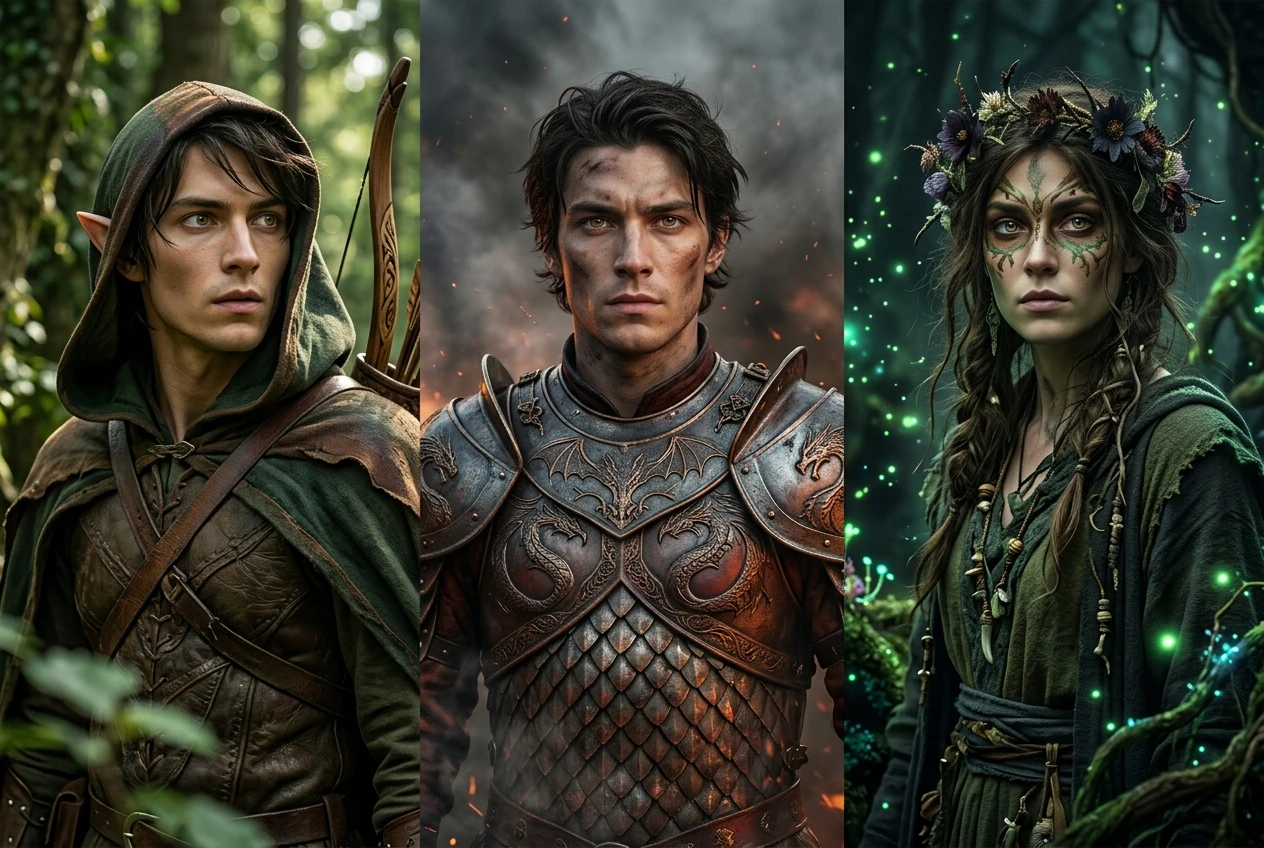
These three starting points cover a wide range of what a fantasy transformation can do, and each one teaches you something different about keeping likeness intact.
Elf ranger. This is the gentlest transformation and the best first test. The additions are mostly clothing and ears: a hooded leather cloak, a bow slung across the back, subtle pointed ears, muted forest colors. Because so little of the change sits directly on the face, this archetype is the most reliable way to confirm your upload settings are preserving your features before you move on to anything more dramatic.
Dragon knight. This one adds heavier armor and a stronger color and lighting shift, scaled plate armor, a dragon-motif helmet pushed back or removed so the face stays visible, a smoky or firelit background. The challenge here is making sure the helmet or headgear doesn’t creep onto the face itself. Keeping the helmet described as “open-faced” or “visor raised” helps the model understand your face should stay uncovered and intact.
Forest witch. This archetype leans into magic effects and atmosphere: a flower crown, glowing green particles in the air, a staff with a softly lit crystal, dappled forest light across the shoulders. The lesson here is about effects discipline. It’s tempting to describe glowing eyes or a dramatically transformed expression, but keeping the magic in the air and on the clothing, rather than on the face, is what keeps this version recognizably you.
Run all three on the same source photo and compare them side by side. You’ll start to see a pattern in which kinds of additions the model handles cleanly and which ones pull harder on your actual features, and that pattern is exactly the thing that makes your next prompt better than this one.
When the result looks nothing like you: the fix before you reroll
It’s tempting to hit generate again and hope for better luck. Sometimes that works, but if a result has drifted far from your actual face, rerolling the same settings usually just produces a different stranger rather than a fixed version of you. Before you reroll, check these in order:
- Lower the transformation strength. If the dial was set high, that’s very often the whole problem. Bring it down a notch and run it again on the same photo before changing anything else.
- Turn on or increase the face-lock or likeness setting, if you hadn’t already. This single switch fixes more drifted results than any prompt adjustment.
- Simplify the prompt. If you asked for armor, wings, a new hairstyle, and glowing eyes all at once, that’s a lot of competing instructions. Strip it back to one or two additions and see if the face holds.
- Check the source photo again. A tilted angle, harsh shadow, or busy background can be the actual culprit, not the prompt at all. If the photo itself was marginal, swapping to a cleaner one often solves the problem faster than any setting change.
- Reduce facial description in the prompt. If you wrote anything at all about your eyes, jaw, or skin, try removing it entirely and letting the photo speak for itself.
Only after you’ve worked through that list is it worth rerolling with the same settings. Randomness plays some role in any generation, but a drifted face is far more often a settings or prompt problem than bad luck, and treating it that way saves you a lot of wasted generations.
Turning one good result into a full character sheet
Once you’ve got one fantasy version that genuinely looks like you, the wider world opens up. The same photo, the same likeness settings, and small variations in your prompt can produce a whole set of looks that belong to one consistent character rather than a pile of unrelated images.
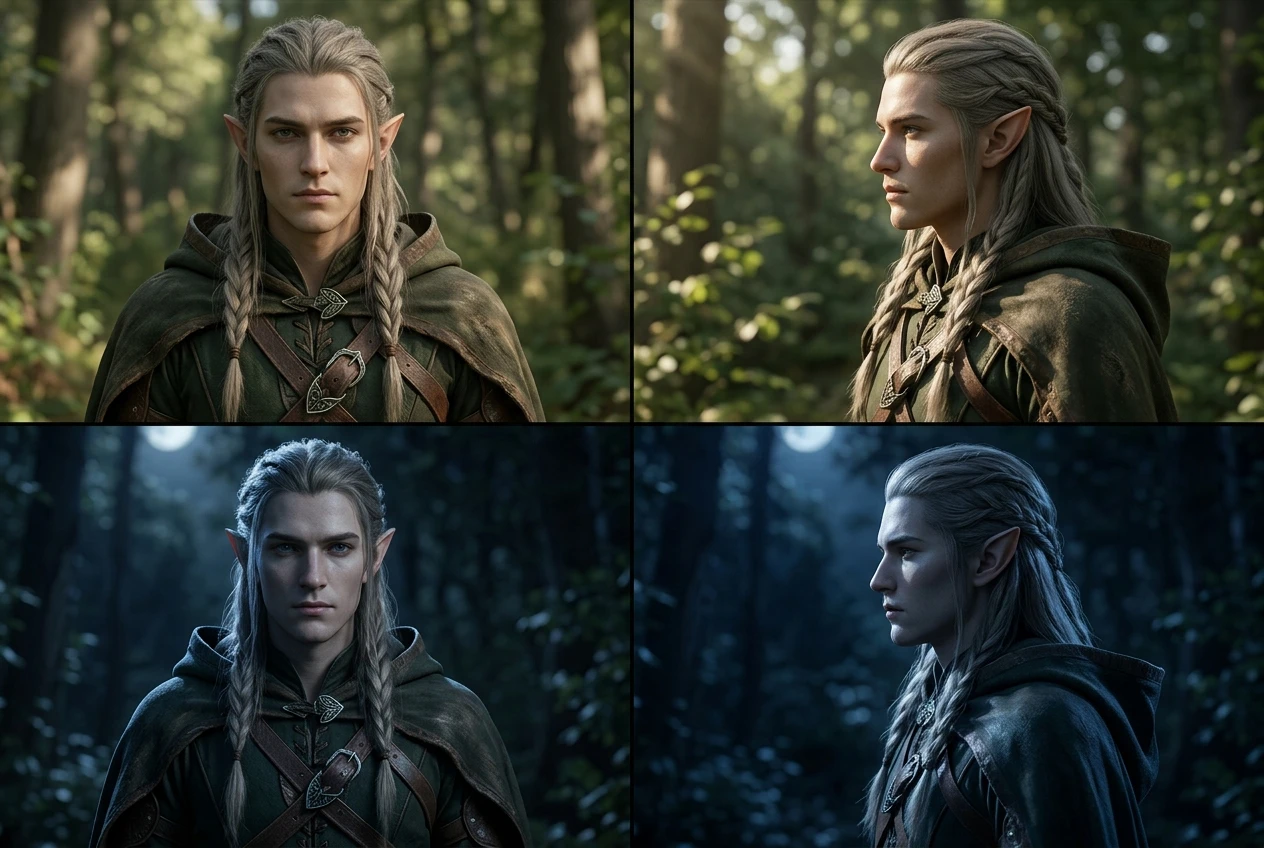
Try generating the same archetype from a few different angles or poses, if your source photos allow it, a front view and a side profile, for instance, to build out a fuller sense of the character rather than a single flat portrait. Keep the costume description consistent across these so the results read as the same character photographed differently, rather than several different characters.
You can also build a small set of variations on the same base: the elf ranger at rest versus the elf ranger mid-draw with an arrow, the dragon knight standing versus kneeling, the forest witch in daylight versus under moonlight. Changing the pose or lighting description while holding the costume and face settings steady is how a single good generation becomes a character sheet instead of a one-off image.
This is also where it’s worth testing archetypes beyond the three above. The same photo-to-character process works for a cyberpunk operative, a space explorer, a steampunk inventor, anything where the costume and setting change but your face stays the anchor. If you want to push further into a specific stylized direction once you’ve got the likeness fundamentals down, the exact syntax covered in cyberpunk portrait AI prompts is a good next stop, built on the same principle of keeping your real features front and center while the style around them changes.
The core idea stays the same no matter which direction you take it: the photo is your anchor, the prompt is your costume, and the fewer liberties you let the model take with your actual face, the more every new generation looks like a different chapter of the same character instead of a different person entirely.
Upload one photo to kre8or.ai right now and run the elf ranger prompt from this guide. It’s a free account, no credit card required, and you’ll see your first fantasy version of yourself in minutes.