


Fixing Extra Fingers in AI Art: The kre8or.ai Settings That Actually Work
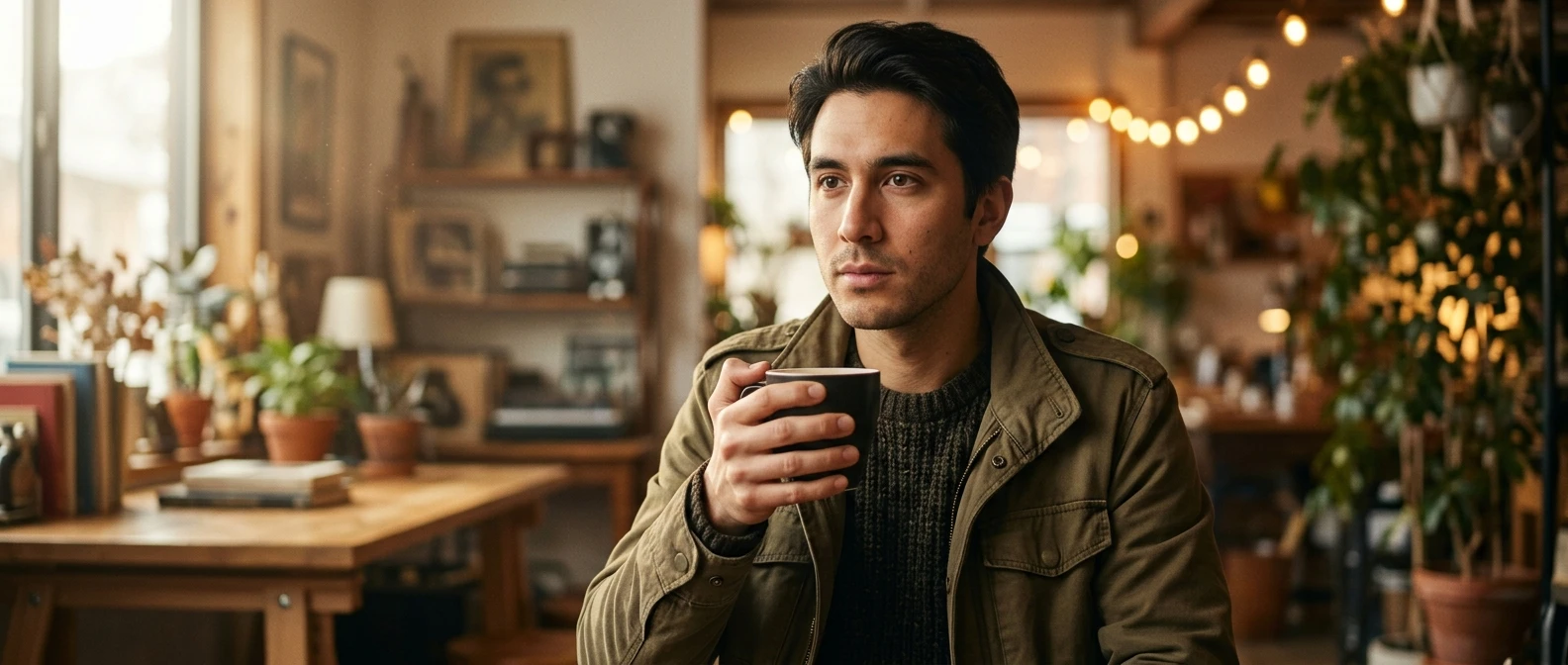
Ask any aspiring AI artist what breaks their images most often, and hands will come up before lighting, before composition, before anything else. You prompt for a confident portrait, the face comes out sharp, the clothing folds correctly, the background sits where it should, and then you look down and the subject has six fingers wrapped around a coffee cup, or a thumb growing out of a wrist at an angle no joint allows. It is the most common failure in AI generated art, and it is not a sign you are doing something wrong.
This article skips the advice you have probably already tried. “Write a better prompt” only goes so far, because the problem usually is not the words you typed, it is what happens after the prompt in the generation process itself. kre8or.ai gives you several places to intervene after that point: a negative prompt field, sampling and resolution controls, and an inpainting tool that lets you fix a single hand without touching the rest of the image. Once you know how to use them together, you stop burning credits on regenerate after regenerate and start fixing the specific thing that is actually broken.
Why hands trip up every AI image generator, not just yours
Hands are hard for a structural reason, not a training quality reason. A face has a fairly fixed layout. Two eyes, one nose, one mouth, always in roughly the same relative position, so the model has an easy time learning what a face should look like and reproducing it reliably.
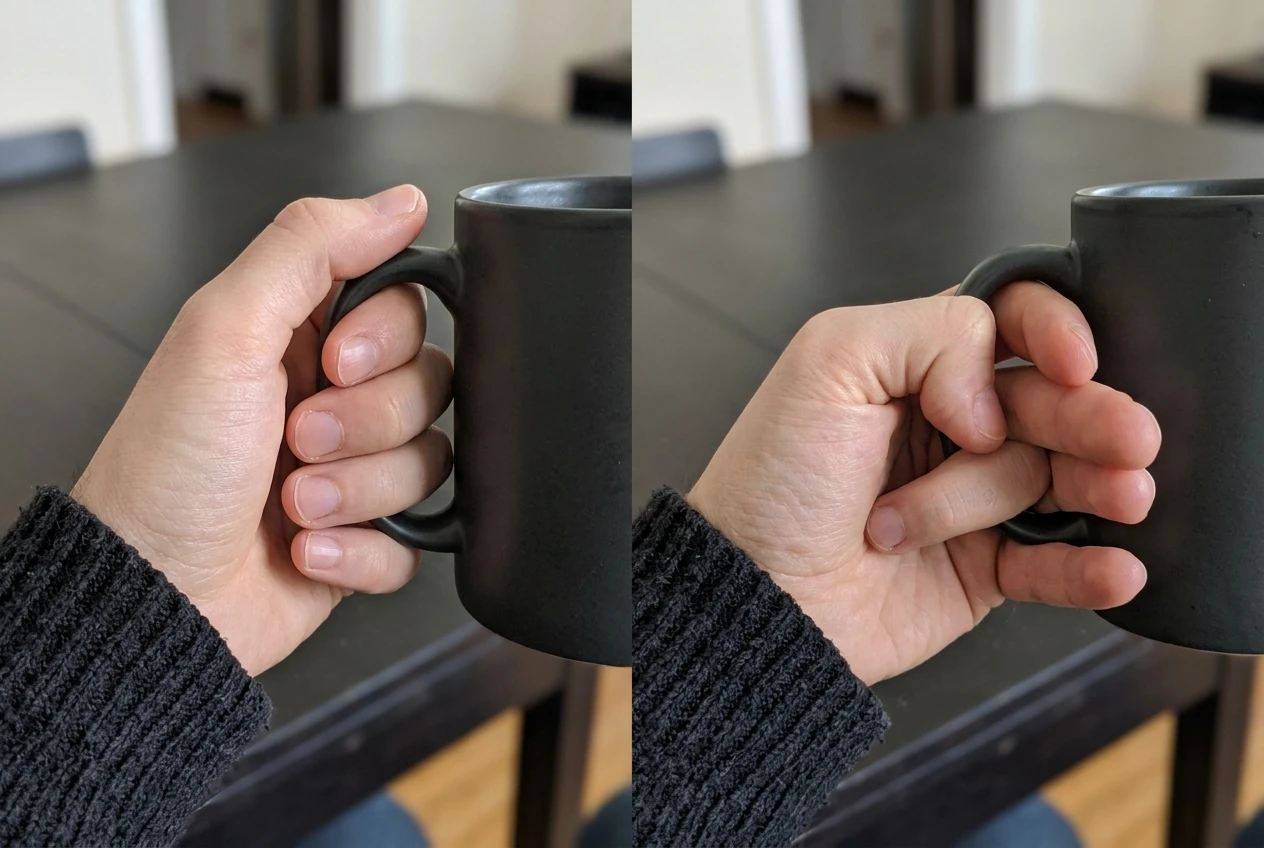
A hand has none of that consistency. Fingers bend at multiple joints, overlap each other, curl behind objects, get partially hidden by sleeves, and change their visible count depending on the angle of the wrist. The same hand holding a cup from the front looks completely different from the same hand holding the same cup from the side. The model is trying to learn a shape that never holds still, from millions of training images where hands are posed in wildly different ways, and it ends up averaging toward something that is anatomically close but frequently wrong in the details, an extra knuckle here, a finger that splits into two, a thumb on the wrong side.
This is true of every major image generator on the market, not just kre8or.ai. It is a known limitation of how diffusion models build an image up from noise, refining a rough shape into detail over many steps. Hands, being small, high detail, and highly variable, are exactly the kind of feature that gets refined last and gets refined least reliably. Knowing this matters because it tells you where to put your effort. You are not failing to find the magic prompt. You are working around a structural weak spot, and the fix lives in your settings and your editing tools, not in a longer string of adjectives.
If you have not already read Graphic Prompts That Turn Any Idea Into Art on kre8or.ai, it is worth a look for the broader prompt structure that makes everything downstream, including hand fixes, easier to control. But prompt wording alone will not solve the finger problem. The rest of this article covers what will.
The negative prompt field in kre8or.ai and what to put in it for hands
The negative prompt field tells kre8or.ai what to steer away from while it generates, and it is one of the most underused tools for hand problems specifically. Most people fill it with generic terms like “blurry” or “low quality” and move on. For hands, you want to be more deliberate.
Add specific, literal terms describing the failure modes you keep seeing: extra fingers, fused fingers, missing fingers, malformed hands, too many fingers, extra limbs, distorted hands, mutated hands, long fingers, disfigured hands. You do not need all of these in every negative prompt. Use the ones that match what you are actually getting wrong. If your renders keep producing fused fingers that look webbed together, put that in. If your problem is an extra digit rather than a fusion, specify extra fingers instead. A negative prompt loaded with every possible hand failure term dilutes the weight given to each one, so target the two or three that match your actual results.
It also helps to describe what you want the hand to be doing, not just what to avoid. If your subject is meant to be holding an object, a clear description of a natural grip position in the main prompt gives the model a defined pose to aim for, which reduces the number of ways it can go wrong. Vague poses like “hands by their side” leave too much room for the model to improvise, and improvisation is where extra fingers creep in. Combine a specific positive description of the hand’s pose with a negative prompt naming the specific failure types, and you will see a noticeable drop in botched renders before you even touch the inpainting tool.
One more point worth knowing: negative prompts work by influence, not by guarantee. They shift probability away from the terms you list, they do not forbid them outright. That is why this is step one of a layered approach, not the whole fix.
Sampling steps and resolution settings that give hands a fighting chance
Sampling steps control how many passes the model makes while refining the image from noise into a finished picture. Too few steps and fine detail, including finger count and finger shape, gets left unresolved because the model simply ran out of passes to correct it. Pushing your step count into the higher end of what kre8or.ai offers gives small, detailed features like hands more opportunity to resolve cleanly, rather than getting frozen mid-refinement.
More steps does cost more generation time and more credits, so this is not a setting to max out on every single render. Save the higher step count for images where hands are prominent and visible, a close up portrait holding something, a character gesturing, anything where the hand is a focal point rather than a small detail in the background. For wide shots where hands are small and not the center of attention, lower step counts are fine and will save you credits without a visible quality loss.
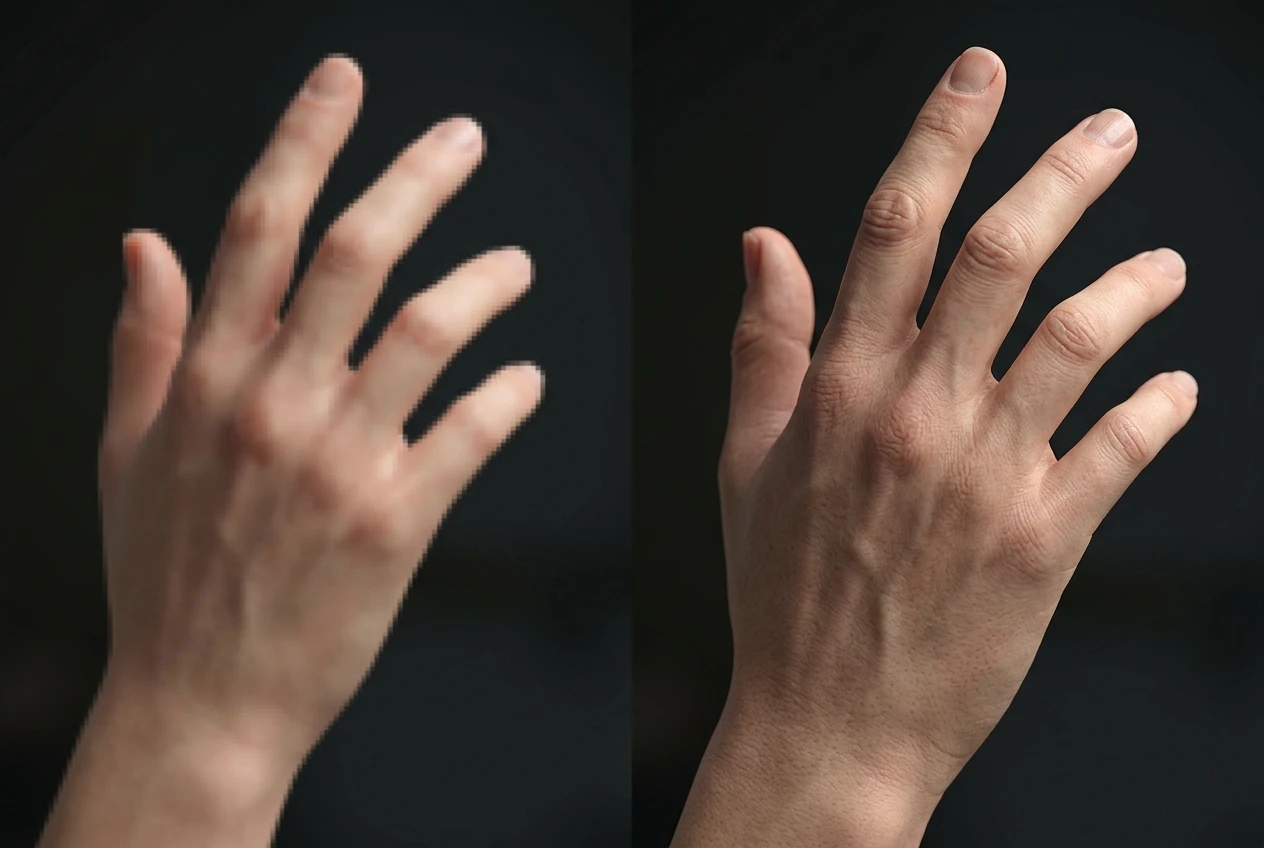
Resolution plays a similar role from a different angle. A hand generated inside a small image occupies very few pixels, which means the model has very little room to render individual fingers distinctly. Generate at a higher resolution, or generate your composition at a size where the hand takes up a reasonable portion of the frame, and the model has more pixels to work with when drawing each finger. If your current workflow generates a full body shot at a modest resolution and the hands come out as blurred stubs, that is often a resolution problem as much as a prompting problem. Bumping the resolution up, or cropping your composition so the hand is not squeezed into a tiny portion of the canvas, frequently fixes blur and finger separation issues on its own.
Put steps and resolution together and you get a simple rule: give the model enough passes to refine detail, and enough pixels to render that detail distinctly. Skimp on either one and hands are the first place it shows.
Fixing one bad hand without regenerating the whole image using kre8or.ai’s inpainting tool
This is the setting that saves the most time once you get comfortable with it. Inpainting lets you select a specific region of an already generated image and regenerate just that region, leaving everything else untouched. For hand problems, this means you can keep a portrait where the face, lighting, and composition all turned out exactly right, and fix only the mangled hand instead of rolling the dice on a full regenerate that might wreck the parts that were already working.
Here is the practical workflow. Once you have a generation with a bad hand, open the inpainting tool and mask just the hand itself, with a small margin around it so the edges blend naturally into the wrist and whatever the hand is touching. Write a fresh prompt focused specifically on that region, describing the hand pose and grip you want. You can reuse the negative prompt terms from earlier, extra fingers, fused fingers, malformed hands, since the same failure modes can reappear in the inpainted region if you do not guard against them there too.
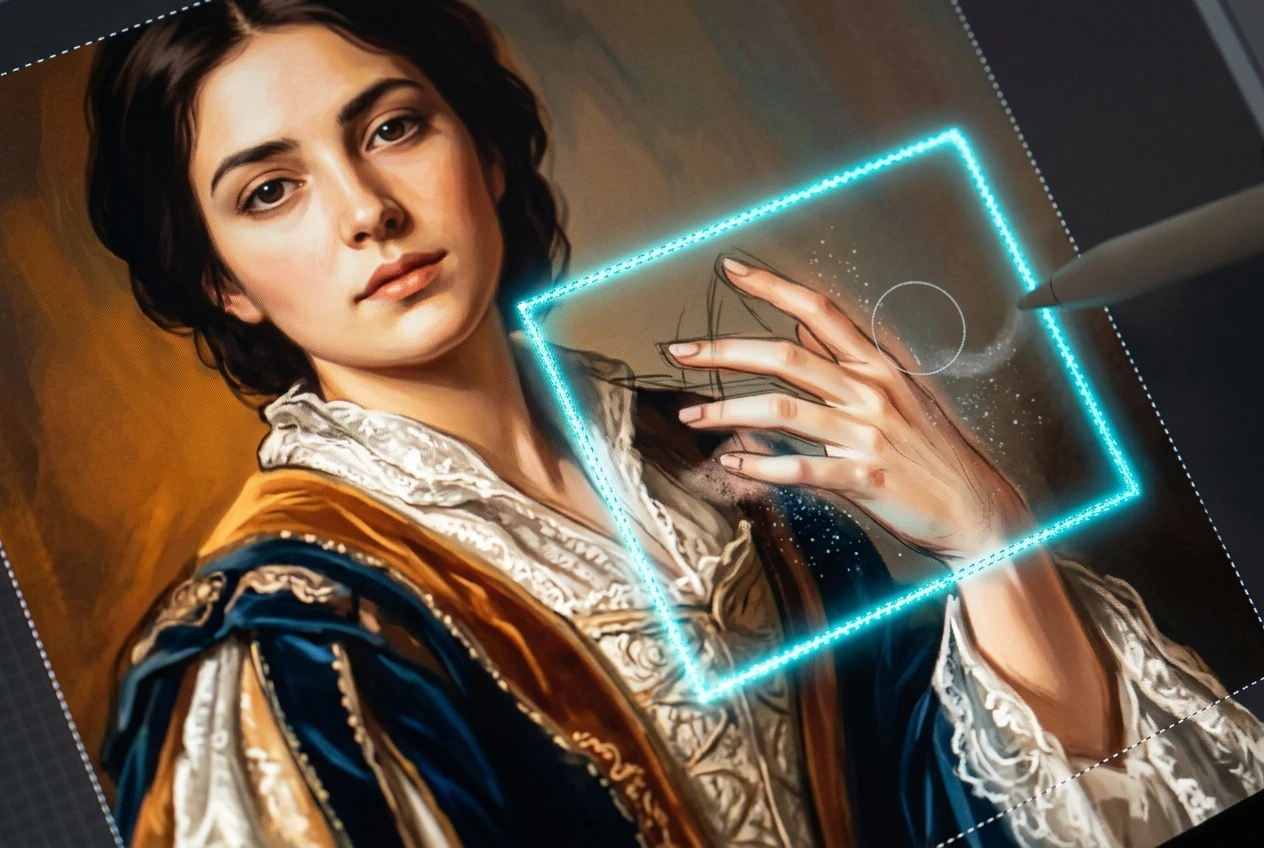
Keep your masked area tight but not pixel-perfect tight. Too tight a mask and the new hand can look pasted on, with a visible seam where the new pixels meet the old ones. A slightly wider mask gives the model room to blend the wrist, the cuff of a sleeve, or the edge of the object being held, so the fix sits naturally in the image rather than looking like a patch.
Run the inpaint, check the result, and if the hand is still off, inpaint again rather than starting the whole image over. You can repeat this two or three times on just the hand region for a fraction of the credits a full regenerate would cost, because you are only paying to regenerate a small patch of the canvas, not the entire piece. This is the single biggest time saver in this article, and it is worth practicing on a handful of images even if your current render is fine, just so the workflow is second nature the next time a hand comes out wrong.
Locking your seed so you can experiment on hands alone
Every image kre8or.ai generates starts from a seed value, a number that determines the initial noise pattern the model refines into your final picture. Leave the seed on random and every generation is a fresh roll, meaning you cannot isolate whether a change you made actually helped or whether you just got lucky on a new random draw.
Lock the seed to the value used for a generation you liked, and you can hold the rest of the image constant while you adjust only your negative prompt, your step count, or your inpainting mask, and see the direct effect of that one change on the hand. This turns hand fixing from guesswork into a controlled experiment. Change one variable, observe the result, keep what works, and you build a repeatable sense of which setting actually moves the needle for your particular style of prompt and subject.
This also matters for consistency across a series. If you are generating multiple images of the same character or the same composition style, locking the seed and then adjusting your negative prompt and inpainting approach lets you apply a hand fix that worked once to a whole batch of similar images, rather than rediscovering the fix by trial and error on every new render. Seed locking will not fix a bad hand by itself, but it is what makes every other fix in this article actually diagnosable instead of a shot in the dark.
When a settings fix won’t work and a full regenerate is faster
All of this said, there are times when inpainting and prompt adjustments are not worth the credits, and a plain regenerate is the faster path. If the hand problem is severe, fingers fused into an unrecognizable mass, a hand bent at an angle that makes no anatomical sense, or missing entirely with just a smear where it should be, inpainting is trying to repair a region that barely has a hand to begin with. The model has very little correct structure to build from, and repeated inpaint attempts on a region that bad tend to produce another variation of the same failure rather than a fix.
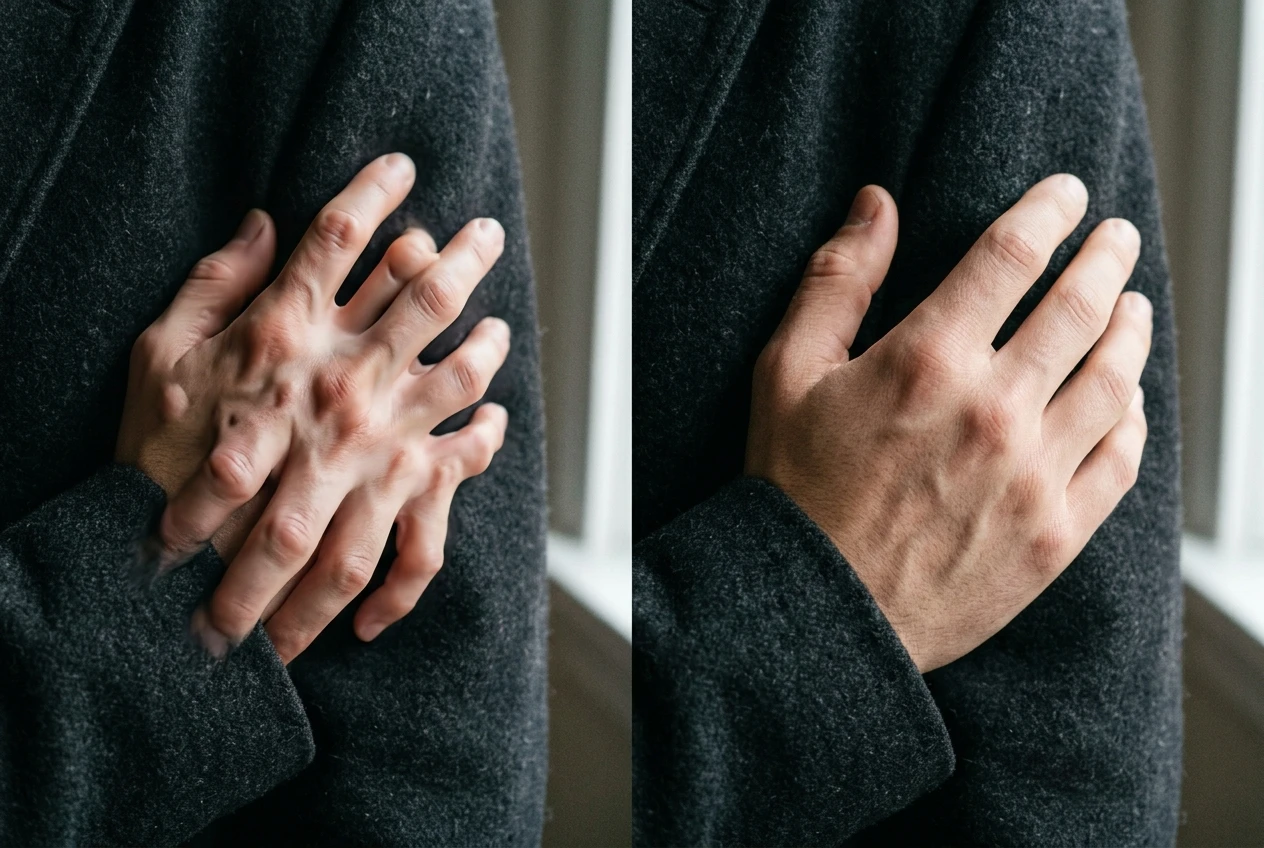
A rough guide: if you can describe the problem as “this hand has the wrong number of fingers” or “this grip looks awkward,” inpainting is almost always worth trying first, since the underlying hand structure is mostly there and just needs correction. If the problem is closer to “this isn’t recognizable as a hand,” you are better off adjusting your composition, maybe posing the hand less prominently in the frame, maybe changing the angle so the hand is turned away from the camera, and generating again from scratch. Composition changes that reduce how much work the model has to do on a difficult feature often succeed where repeated inpainting on a severely broken feature does not.
It is also worth regenerating from scratch, with your negative prompt and step count already improved, whenever you are starting a brand new composition rather than fixing an existing one. The settings covered in this article front-load your odds of getting a clean hand the first time, which means less inpainting work after the fact. Use them from the start of a new generation, and save inpainting for the occasional miss rather than treating it as your only line of defense.
Getting comfortable with the difference between a settings fix and a full regenerate is really about reading the severity of what you are looking at. Minor errors, fix them in place. Major structural failures, start over with better odds baked in. Neither choice wastes credits once you know which one the image in front of you actually calls for.
Open kre8or.ai and try the inpainting fix on your next botched hand before you regenerate the whole piece.