


The Pixel Art Vocabulary That Makes kre8or.ai Nail 8-Bit and 16-Bit Styles
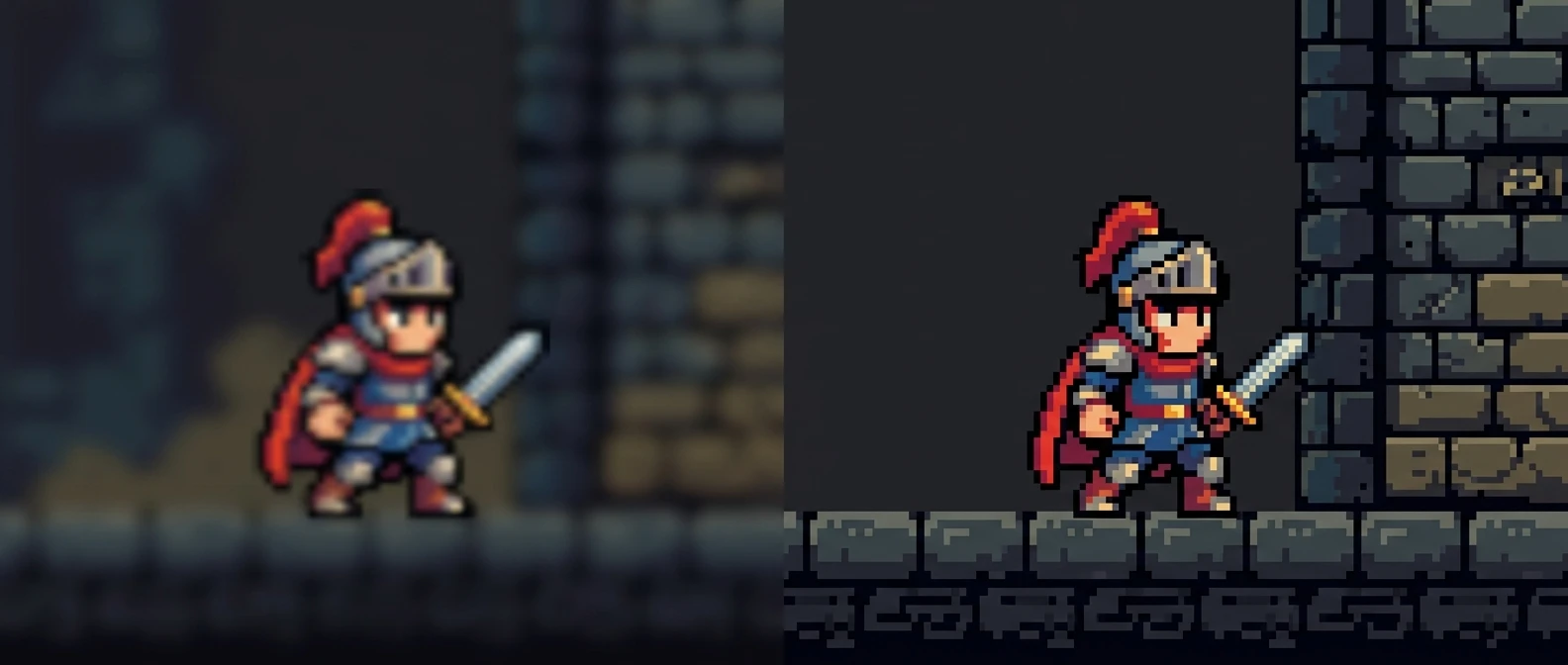
Type “pixel art” into kre8or.ai and you will get something that looks pixelated, technically. Soft edges smeared into little squares, colors blending like a photo filter, no real grid underneath. It reads as “retro-ish” rather than as a sprite someone could have placed on an NES cartridge. The gap between those two results is vocabulary, not luck, and once you know the specific words that pin down era, palette, and resolution, the model has something concrete to work from.
This matters more than it sounds like it should. A diffusion model trained on millions of images has seen real 8-bit sprites, but it has also seen a thousand things casually labeled “pixel art” that are really just low-res photos or blurry mobile game screenshots. When your prompt only says “pixel art,” you are asking the model to average all of that together. The result is mush: a style with no commitment to any actual era of game graphics.
Why ‘pixel art’ alone gives you mush, not sprites
The word “pixel art” by itself describes a category, not a technique. It is the same problem as asking for “a car” and expecting a 1967 Mustang. You will get a car. You might get a sedan, a hatchback, a cartoon car, anything that technically qualifies.
What a convincing sprite actually needs is constraint. Real pixel art from any era was built under hard limits: a fixed number of colors, a fixed grid, a fixed resolution per character or tile. Those limits are what give the style its look, the hard edges, the chunky shapes, the way shading has to be faked with dots instead of gradients. When you don’t name those limits in your prompt, the model has no reason to apply them, and it defaults to something softer and vaguer because that’s what “art” usually means in its training data.
The fix is to describe the constraints directly: the era, the palette size, the dithering technique, the grid. Each term you add gives kre8or.ai one more rule to follow, and the image tightens up accordingly.
The words that set your era: 8-bit versus 16-bit versus modern indie pixel
Era is the first decision, because it changes almost everything else about the image: color count, detail level, and how much shading is even attempted.
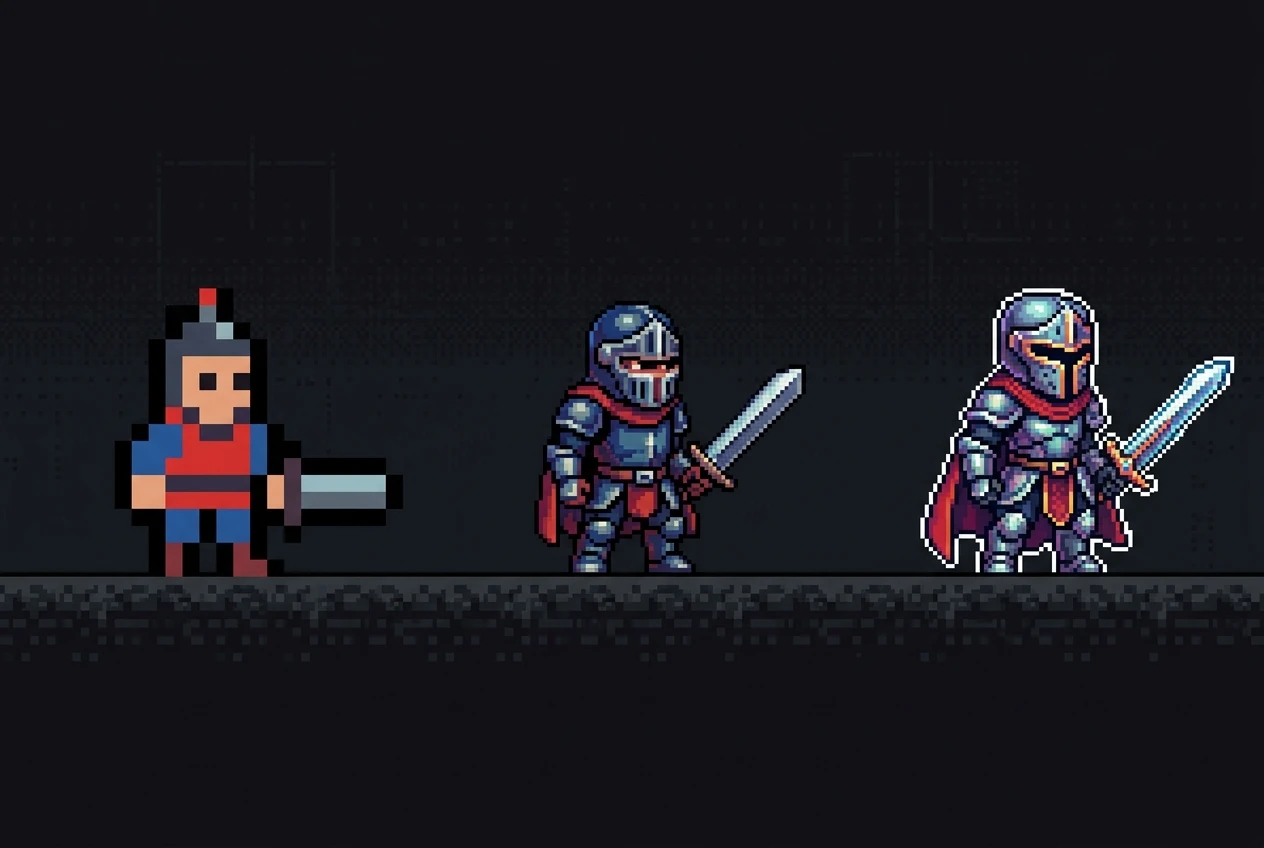
- 8-bit or NES-era calls up simple, blocky shapes with a small color palette per sprite, often 3 to 4 colors plus a background color, and almost no shading beyond flat color blocks.
- 16-bit or SNES-era pulls in noticeably more detail: richer palettes, visible shading through dithering, and smoother silhouettes while still keeping hard pixel edges.
- Modern indie pixel art, the kind associated with games built decades after the original consoles, tends to mix higher color counts with deliberate retro grid structure, so it looks nostalgic but reads cleaner than anything that actually ran on old hardware.
Naming one of these terms does more work in your prompt than a paragraph of adjectives. “16-bit SNES-style pixel art” tells the model both the resolution range and the shading approach in four words. Pick the era that matches the mood you want: 8-bit for stark and iconic, 16-bit for detailed and painterly within the grid, modern indie for something that leans retro without strict historical accuracy.
Palette talk: how to prompt limited color counts and banding
Color is where most generic pixel art prompts fall apart. A photo-realistic model wants to use thousands of colors and smooth transitions between them, because that is what makes images look “good” in most contexts. Pixel art looks good by doing the opposite.
Try naming a specific color count: “limited 16-color palette” or “restricted 8-color palette” tells the model to flatten its usual gradient instinct into distinct bands of color. You can go further and describe the palette’s character, not just its size: “muted earth-tone palette,” “high-contrast neon palette,” “warm limited palette with no pure black.”
Color banding is the term for what happens when a gradient is forced into a small number of discrete steps instead of a smooth blend. Asking for “visible color banding on the shaded areas” tells the model you want those blocky transition zones rather than soft shadow. This single phrase is often the difference between a sprite that looks hand-placed, pixel by pixel, and one that looks like a shrunk-down photograph.
Dithering and anti-aliasing terms that sell the illusion
Dithering is the technique that made old-school graphics feel like they had more colors than they actually did: alternating pixels of two colors in a pattern, so your eye blends them into a third shade at a distance. If you want that checkerboard-style shading in your gradients, the phrase to use is “dithered shading” or “dithered gradient transition.”
Anti-aliasing is almost the opposite instinct, and it matters just as much. In pixel art, anti-aliasing refers to manually smoothing a jagged diagonal edge by placing intermediate-colored pixels along the stair-step line, rather than letting the line stay harshly blocky. Asking for “clean anti-aliased edges on curves” keeps diagonals and circles from looking needlessly rough, while still respecting the grid.
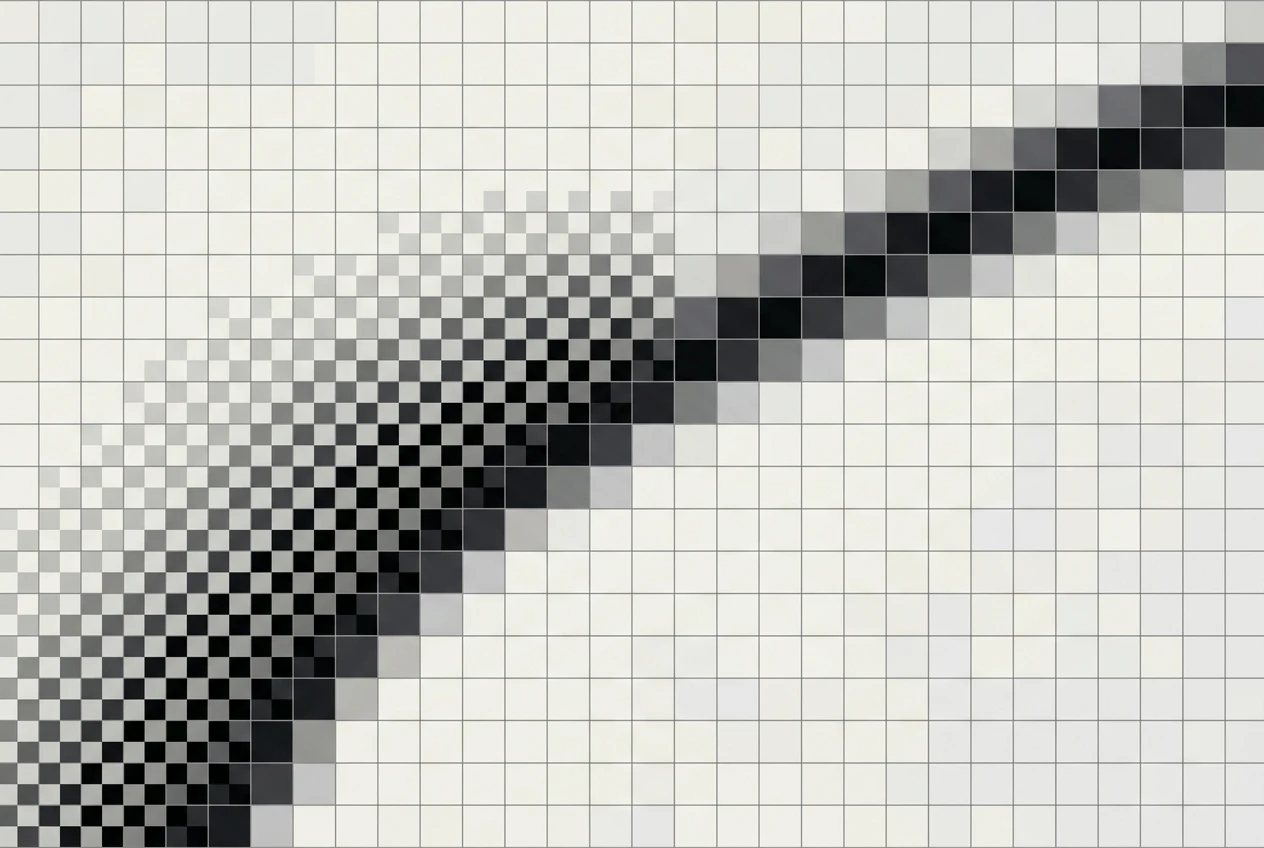
Specify which one you want, or both: “dithered shadows with anti-aliased outlines” is a phrase that tells kre8or.ai exactly where texture belongs and where edges should stay smooth. Without these terms, the model tends to either blur everything (losing the pixel grid entirely) or leave every edge raggedly jagged (which reads as low effort rather than intentional).
Describing resolution and tile size without naming exact pixel dimensions
You don’t need to specify “32 by 32 pixels” for the model to understand scale, and in fact overly precise pixel dimensions can confuse a diffusion model that doesn’t render at literal pixel resolution the way an old game engine did. Instead, describe scale in terms borrowed from game design.
- “Tile-based grid” or “aligned to a tile grid” signals that shapes should sit on clean, regular boundaries, the way game tiles always did, rather than floating at odd angles.
- “Chunky pixel scale” suggests large, visible pixel blocks, closer to an 8-bit look.
- “Fine pixel detail” or “dense pixel grid” suggests smaller, more numerous pixels, closer to 16-bit or modern indie density.
- “Sprite-sheet scale” is a useful shorthand for “sized and proportioned the way a game character sprite would be,” which helps the model avoid rendering something that reads more like a poster than an in-game asset.
These phrases describe relationship and feel rather than a literal measurement, which tends to work better with how these models actually generate images.
Framing and composition words borrowed from classic sprite sheets
Classic pixel art had its own compositional language, built around how characters and objects were actually displayed in games. Borrowing these terms helps kre8or.ai understand not just the style but the pose and framing.
Try terms like:
- “Front-facing sprite pose” or “three-quarter view”, the two most common ways game characters were drawn
- “Idle animation frame”, which suggests a relaxed, neutral stance rather than mid-action blur
- “Side-scrolling perspective” for a flat, profile view common to platformers
- “Isometric pixel art” for the angled, diamond-grid look used in strategy and RPG games
- “Transparent background” or “solid color background, no scene”, which keeps the focus on the sprite itself rather than an environment
These words tell the model what kind of image you’re after structurally, not just stylistically, which matters a lot when you want something that looks like it belongs in a game rather than a standalone illustration.
A sample prompt built piece by piece, term by term
Here’s how these terms stack together into something kre8or.ai can actually use well:
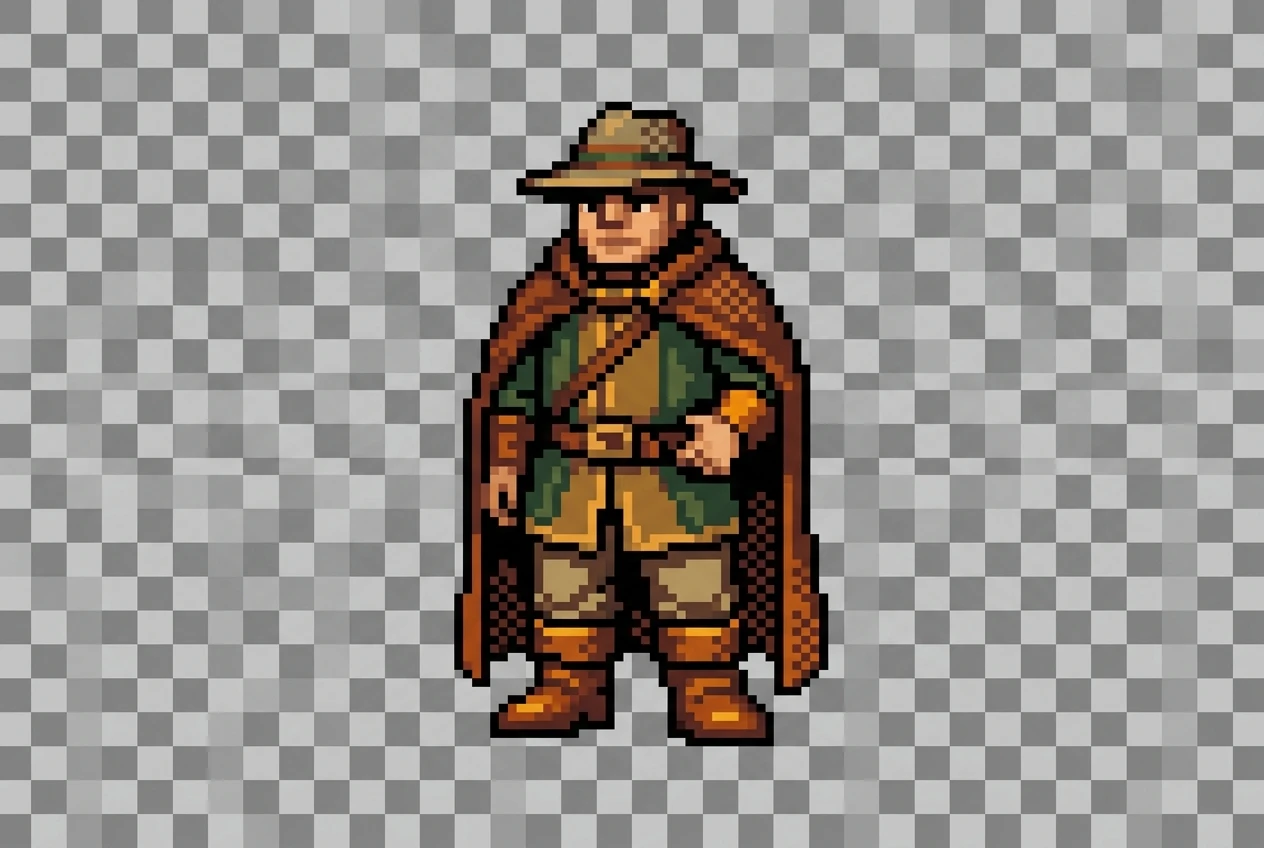
“16-bit SNES-style pixel art, front-facing sprite pose, restricted 16-color palette with warm earth tones, dithered shading on the shadowed side, clean anti-aliased edges on curves, aligned to a tile grid, chunky pixel scale, transparent background.”
Notice how each phrase does one job: era, pose, palette, shading technique, edge treatment, grid alignment, pixel density, and background. None of them is vague, and none of them requires naming an exact pixel dimension. That specificity is what separates a convincing sprite from a blurry retro filter.
Where to go next if you want character or scene work
Once you’re comfortable layering these pixel art terms, the same instinct, naming the exact vocabulary instead of a vague style word, applies to other kinds of AI art too. If you want to see this approach worked through for a completely different look, the breakdown in the exact prompt syntax for cyberpunk portraits shows how specific lighting and material terms do for neon-lit scenes what dithering and palette terms do here for sprites.
Try building your own retro sprite prompt inside kre8or.ai using the vocabulary above, one term at a time, and see the difference it makes.