


The Comic Book Artist’s Workflow for kre8or.ai: From Script to Consistent Page
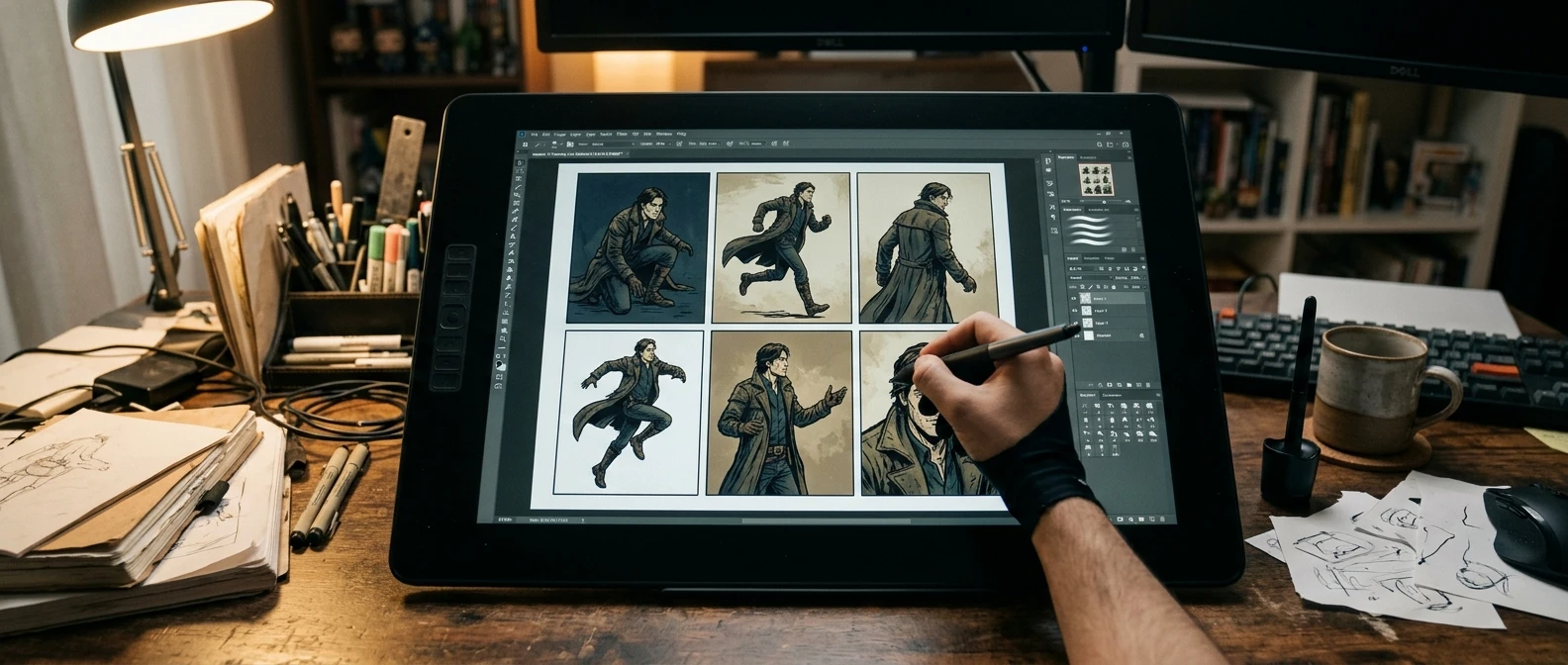
A single striking panel is easy to fall in love with. It has the lighting right, the pose reads clearly, the color feels like it belongs on a printed page. Then you try to make panel two, and the character’s jaw is a different shape, the jacket has changed color, and the linework is suddenly thinner. One good image is a portfolio piece. A comic page is twenty or thirty of those decisions all agreeing with each other, panel after panel, for the length of an issue.
That agreement is the actual hard part of making comics with AI tools, and it’s rarely the part beginner guides cover. Most tutorials walk you through writing one great prompt and stop there, as if a comic were a gallery of unrelated illustrations instead of a sequence that has to hold together. This article is about the workflow that gets you from a script to a finished page where all six panels look like they were drawn by the same hand, because on kre8or.ai, they can be.
Why one stunning panel isn’t the same as a finished comic page
A comic page asks an image generator to do something a single illustration never has to: repeat itself accurately, over and over, while changing camera angle, expression, and action each time. The character’s face, proportions, costume, and rendering style all need to survive six separate generations without drifting.
Drift is the enemy here, and it shows up in small ways before it shows up in big ones. A character’s eye color shifts half a shade. The inking goes from a confident thick line to something thinner and scratchier. The color palette that made panel one feel moody suddenly looks flat in panel four. None of these are dealbreakers on their own, but stacked across a page, they tell the reader’s eye that something is off, even if they can’t say exactly what.
The fix isn’t to generate more images and hope one set matches. It’s to build the consistency into your process before you generate panel one, so every panel after it is working from the same foundation instead of starting over.
Start with a character sheet prompt you’ll reuse for the whole issue
Before you touch the script, build a character sheet. This is the single prompt (or small set of prompts) that defines your main character’s face, body type, costume, and color palette in enough detail that you can paste the same description into every panel prompt for the rest of the issue.
A usable character sheet prompt is specific in the ways that matter and silent on the ways that don’t. You want fixed, repeatable language for:
- Face shape, hair color and style, and any distinguishing features (scar, glasses, tattoo)
- Costume details down to color codes or named materials, not just “a blue jacket”
- Body proportions and posture, especially if your character is stylized rather than realistic
- The art style itself: line weight, shading approach, color saturation
Write this as a block of text you can copy in full, not a loose idea you’ll try to remember. If your character sheet says “dark auburn hair, short angular bob, left cheek scar running from eye to jaw, navy trench coat with brass buttons, sharp inked linework with flat cel shading,” that exact phrase goes into every single panel prompt for this issue. You’re not reinventing the character each time. You’re reusing the same anchor and changing only what the panel needs.
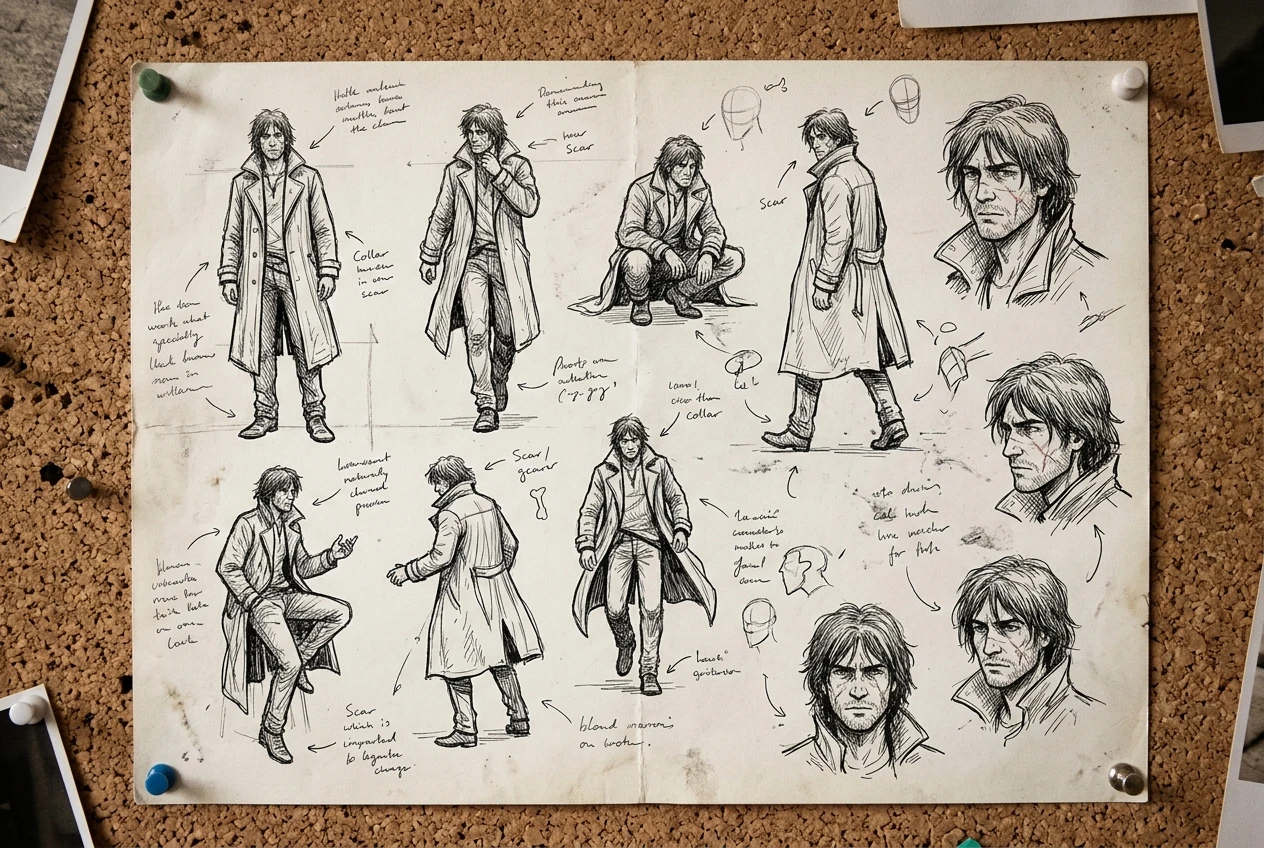
Generate the character sheet first, on its own, and look at it critically before you commit to it. This is the image you’ll be matching for the next twenty pages, so it’s worth a few extra generations to get the proportions and style exactly where you want them before you lock it in.
Turning a script page into panel-by-panel prompts
Once the character sheet is solid, take your script page and break it into its individual panel descriptions the way an artist would thumbnail it. Each panel needs its own prompt, but every one of those prompts starts from the same place: your locked character description, plus whatever changes for that specific moment.
A panel prompt built this way has three layers stacked in order:
- The fixed character sheet text (unchanged, every panel)
- The panel-specific action, expression, and camera angle
- The scene and background details unique to that moment
So panel one might read: character sheet text, plus “three-quarter angle, mid-stride, determined expression, rain-slicked street background, neon sign reflections.” Panel two keeps the character sheet text identical and swaps in “close-up on face, eyes narrowed, raindrops on cheek, background blurred.” The character doesn’t change. The moment does.
This layered structure is also where good prompt-writing habits pay off generally, not just for comics. If you haven’t settled on a reliable way to phrase subject, style, and scene details so the generator actually listens to them, the breakdown in Graphic Prompts That Turn Any Idea Into Art on kre8or.ai covers the syntax that makes prompts like these behave predictably, which matters even more once you’re running the same structure six or more times on one page.
Keep a running document of every panel prompt for the page, in order. When you generate panel four and something looks slightly off compared to panel one, you want to be able to scroll back and compare the actual text, not try to remember what you typed twenty minutes ago.
Keeping linework, color, and inking style locked from page one to page twenty
The character sheet handles who’s in the panel. A separate, equally important piece handles how the whole book is drawn, and that’s your style lock: the handful of phrases describing linework, inking, and coloring that stay identical across every panel, every page, for the entire issue.
Treat style the same way you treat the character description: write it once, as exact language, and paste it into every single prompt without rewording it. If panel one uses “bold black outlines, two-tone cel shading, muted desaturated palette,” panel twenty should use the exact same phrase, not a rephrased version that happens to mean something similar. Small wording changes produce small rendering changes, and small rendering changes are exactly what makes a page look inconsistent.
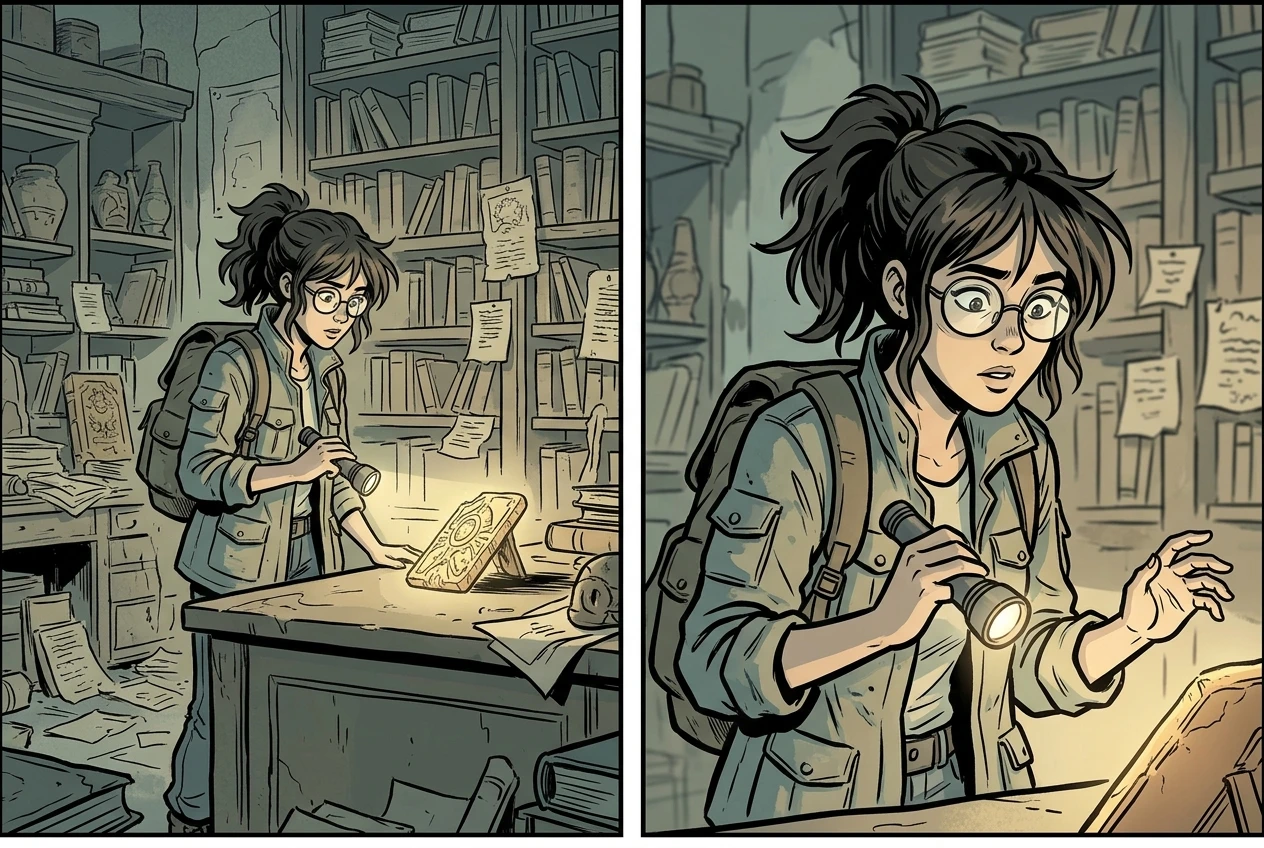
It helps to separate your style language from your scene language entirely, almost like two different paragraphs glued together in the prompt: one block that never changes (character plus art style), one block that changes every time (action, angle, background). This separation makes it much easier to catch when you’ve accidentally let a scene detail bleed into your style description, which is one of the most common ways drift creeps in without anyone noticing until the page is assembled.
If you’re working across multiple issues, save this style block somewhere outside your prompt history too, a plain text file is enough, so page one of issue two starts from the identical wording as page twenty of issue one.
Prompting with gutters and speech bubble space in mind from the start
A panel that looks perfect as a standalone image can still fail as a comic panel if there’s nowhere to put a speech bubble without covering the character’s face. This is one of the most overlooked parts of an AI comic workflow, because it has nothing to do with the art style and everything to do with layout.
Before you generate a panel, think about where the dialogue for that moment needs to sit. If a character has a line of dialogue, you want open space, sky, wall, blurred background, somewhere in the upper third or a clear corner of the panel where a bubble can sit without crossing a face or an important piece of action. Build that into the prompt directly: “wide shot with open space in the upper left for dialogue” or “character positioned right side of frame, empty background left” gives the generator a reason to leave that space alone instead of filling the whole panel with detail.
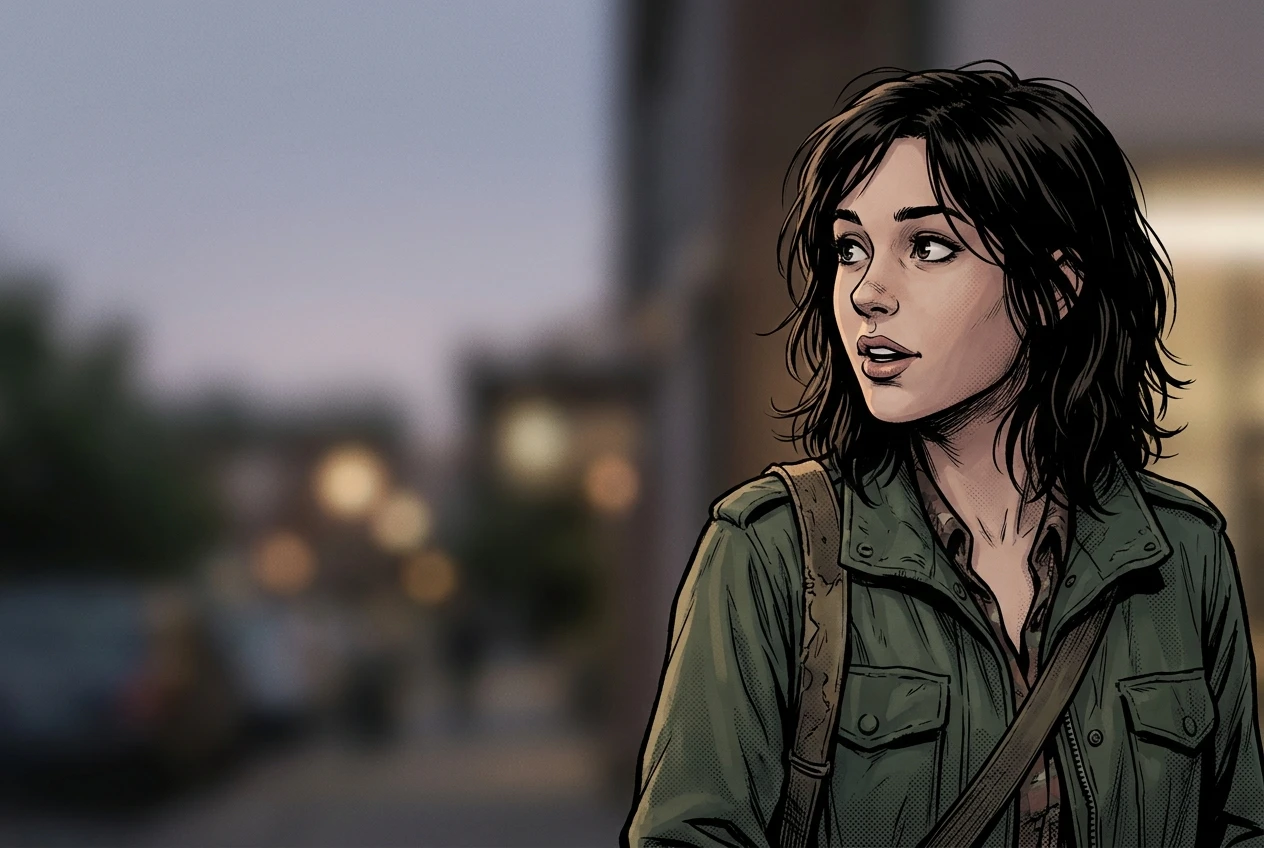
The same applies to gutters, the space between panels. If your page layout calls for panels bleeding close together, keep your framing tight and avoid asking for wide environmental shots that need room to breathe. If a panel is meant to be the one big establishing shot on the page, that’s the one place to ask for the wider composition.
Thinking about this before you generate saves you from the alternative, which is generating a beautiful panel and then realizing in layout that there’s no honest place to put the text without painting over the one thing you liked most about the image.
Assembling the page and catching the panel that breaks consistency
Once all six panels are generated, lay them out in your page layout tool before you commit to anything else, and look at the page as a whole rather than one panel at a time. This is the moment inconsistencies that were invisible in isolation become obvious. A jacket that looked navy on its own might read as clearly too blue or too purple sitting next to the same jacket in the panel before it.
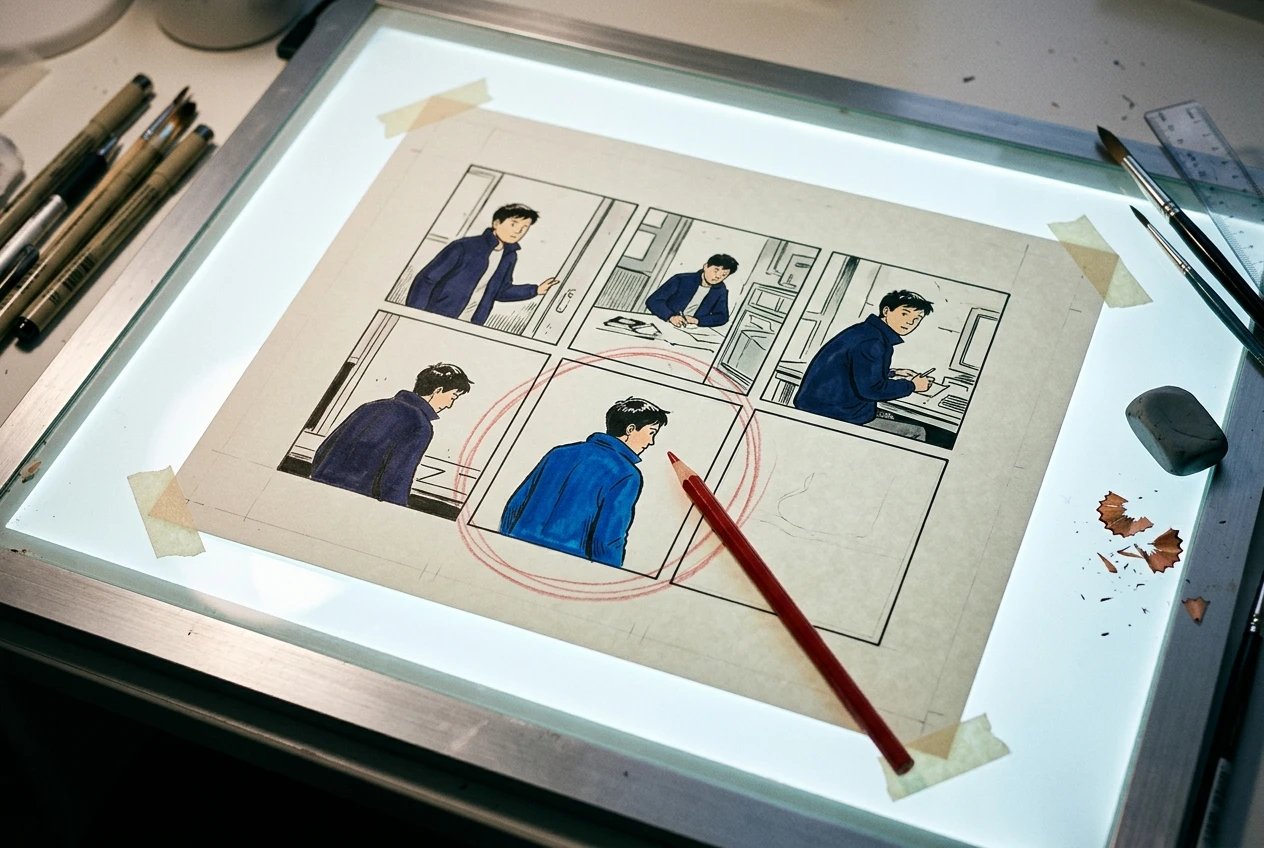
Go panel by panel and ask the same three questions each time:
- Does the character’s face and proportions match the other panels?
- Does the linework weight and shading style match?
- Does the color palette match, especially skin tone and costume color?
When one panel breaks consistency, regenerate just that panel rather than reworking the whole page. Pull the exact character sheet text and style block you used for the other panels, keep the same panel-specific action and framing, and run it again. Nine times out of ten the issue is a small wording drift between that prompt and the others, not a fundamental problem with the generator, and comparing your saved prompt text side by side usually reveals exactly where the difference crept in.
This is also the point where it’s worth stepping back from the page entirely for a few minutes before deciding something’s wrong. A panel that looks slightly off next to its neighbors on first glance sometimes reads fine once you’ve looked at the whole page a second time with fresh eyes.
Saving the whole thing as a template for your next issue
Everything built for this page, the character sheet text, the style block, the layered prompt structure, the gutter and bubble space habits, is reusable for the next page, the next issue, and any new character you add to the cast. Save the character sheet and style block as a standing document you copy from every time, rather than something you reconstruct from memory or old chat history.
The real payoff of this workflow shows up on page ten, not page one. The first page takes longer because you’re building the character sheet and style block from scratch. By the time you’re twenty pages in, you’re not solving the consistency problem anymore, you’re just filling in the panel-specific layer on top of a foundation that’s already locked.
That foundation is the one piece of this whole process worth getting right before anything else. Open a kre8or.ai account and build your first character sheet prompt today, it’s the one step that makes every panel after it easier.