


Why Your kre8or.ai Images Come Out Glitchy (And How to Fix Each Cause)
Every glitch you’ve seen in a kre8or.ai render, the melted face, the sixth finger, the text that looks like it was written in a language that doesn’t exist, has a specific cause. None of it is bad luck, and none of it means the tool is broken. It means the prompt left a gap, and the model filled that gap with a guess. This guide skips the general pep talk about “writing better prompts” and goes straight to the symptom you’re looking at right now, with the fix for that exact problem.
The Real Reason Glitches Happen: Prompt Ambiguity, Not Bad Luck
Every AI image generator, kre8or.ai included, builds a picture by resolving thousands of small decisions: where a hand goes, how light falls across a cheekbone, what’s happening behind a subject’s shoulder. When your prompt answers a decision clearly, the model follows it. When your prompt is silent on a decision, the model invents an answer, and sometimes that answer is a hand with four fingers and a thumb growing out of the wrist.
Glitches cluster around the parts of a prompt that are usually left vague: faces in motion, hands doing something specific, text on signs or labels, and backgrounds that aren’t the main subject so they get described in one clause instead of several. Once you know which category a glitch falls into, you can aim the fix at the actual gap instead of rewriting the whole prompt and hoping.
Melted or Asymmetrical Faces: What’s Causing It and the Fix
A melted face, one eye lower than the other, a jaw that bends at an angle no jaw bends at, almost always comes from a prompt that describes a face in terms of mood or style but not structure. “A sad woman looking into the distance” gives the model a feeling to chase and no anchor for where the features sit.
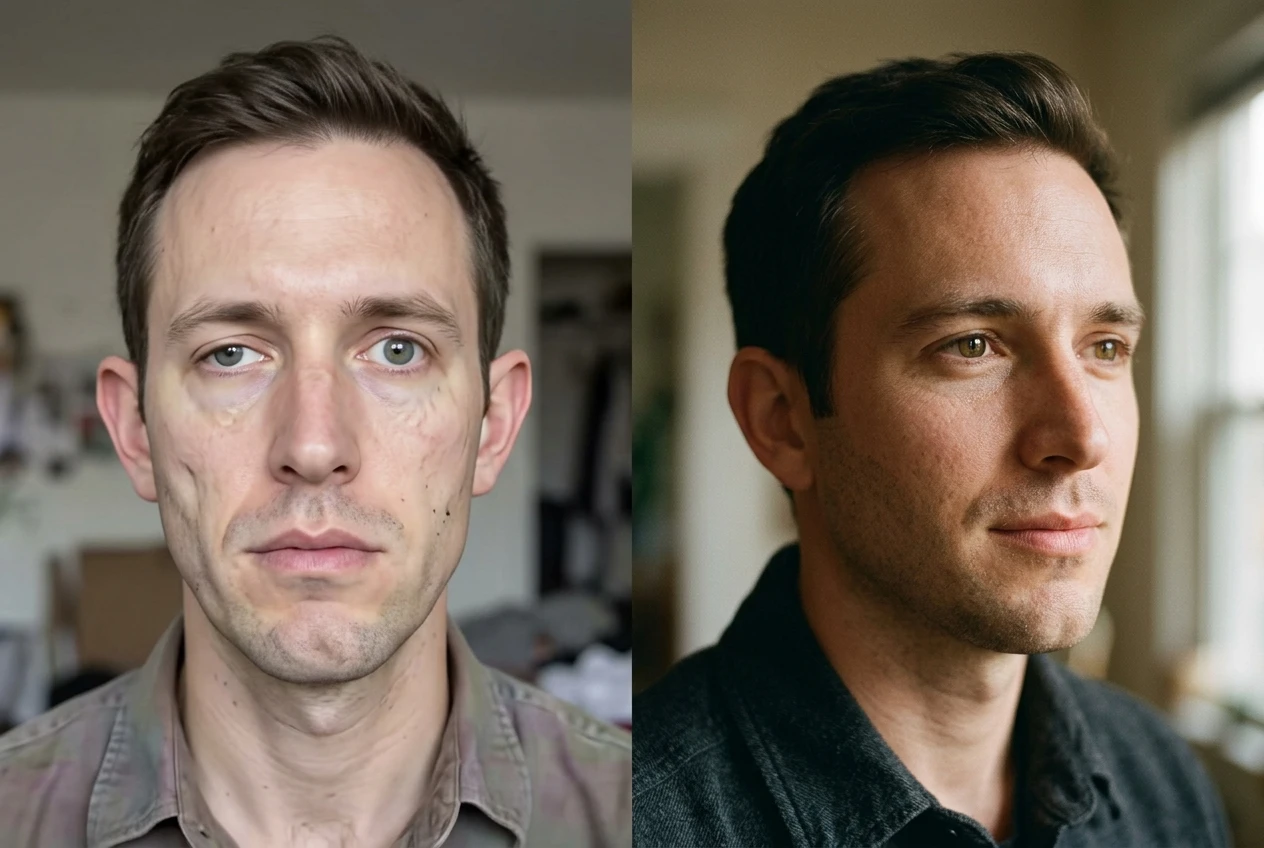
The fix is to describe the face the way a sculptor would before you describe the emotion:
- State the angle: front-facing, three-quarter profile, or full profile.
- Name the expression in concrete terms: “closed-mouth smile,” not “happy.”
- Add a lighting direction, since faces distort more under ambiguous lighting: “soft light from the left” gives the model fewer shadow options to misjudge.
- Keep facial descriptors in one tight cluster in the prompt rather than scattering them across unrelated clauses.
If you’re building portrait work specifically, the syntax used in cyberpunk portrait prompts carries over directly here, since that style depends on precise facial framing to survive heavy lighting and color effects. The piece on cyberpunk portrait prompt syntax walks through the exact phrasing that keeps a face intact even under neon and heavy contrast.
Extra or Missing Limbs and Fingers: A Quick Diagnostic
Hands and limbs glitch for a different reason than faces: they’re being asked to do something, and “something” is rarely spelled out. “A man holding a coffee cup” doesn’t say which hand, what grip, or where the other hand is. The model answers all three questions itself, and sometimes it answers by adding a limb.
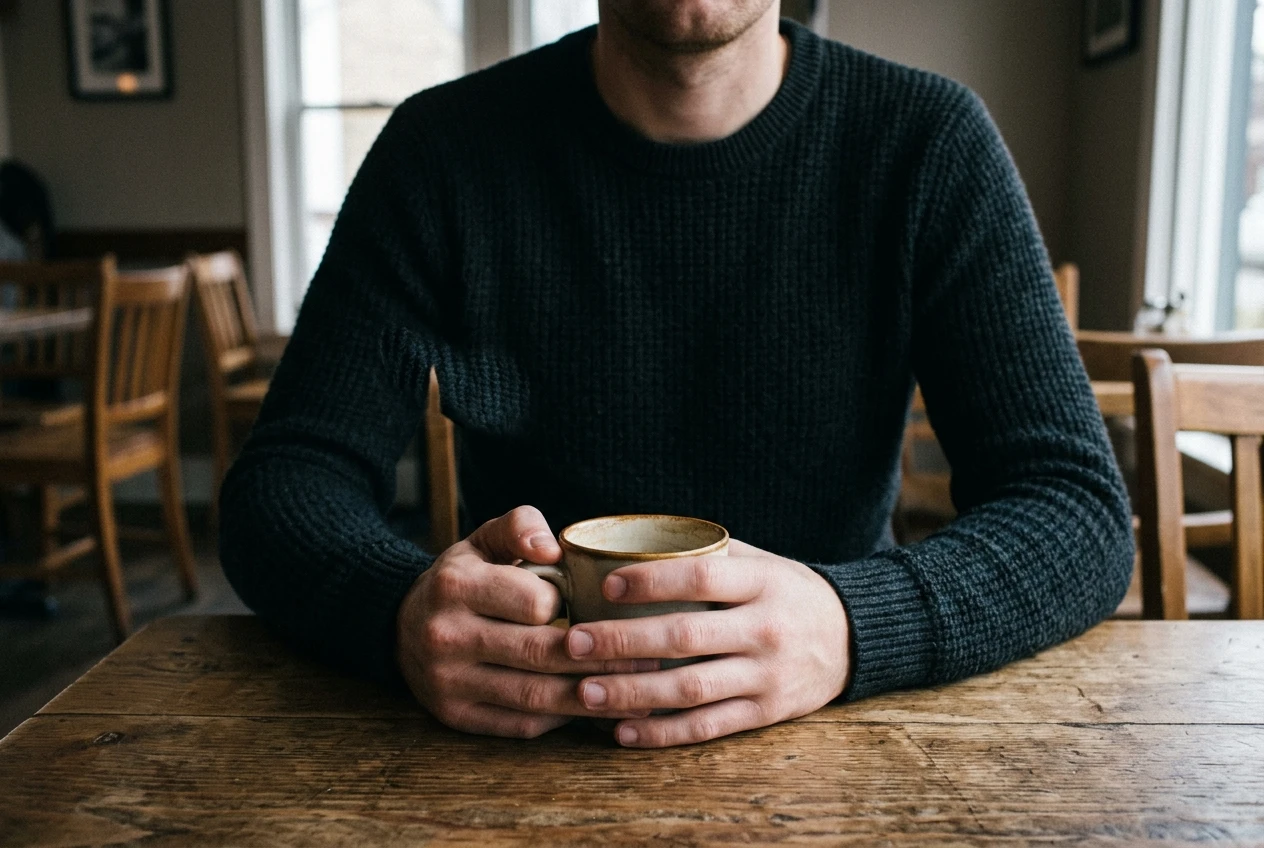
Run this diagnostic before you generate:
- Does the prompt name which hand is doing the action? If not, add it.
- Does the prompt say what the other hand or arm is doing? Idle limbs left undescribed are where extra fingers tend to show up.
- Is the pose active (reaching, gripping, pointing) or passive (resting, folded, at sides)? Active poses need more detail, not less.
- Is the limb partially hidden by clothing, an object, or the frame edge? If so, say so directly: “right hand mostly hidden behind the mug” gives the model permission to simplify rather than invent.
A full-body shot with both hands visible and both doing something specific is the hardest image to get clean. If a render keeps glitching on limbs, try cropping the described scene to the waist up, or have one hand fully out of frame by design rather than by accident.
Muddy Textures and Overlapping Details: Simplify Before You Specify
This glitch shows up as a surface that looks like static, a fabric pattern that bleeds into the skin beneath it, or a background object that merges into the subject’s silhouette. It’s not a face problem or a limb problem, it’s a density problem: too many detailed elements competing for the same visual space with no instruction on which one takes priority.
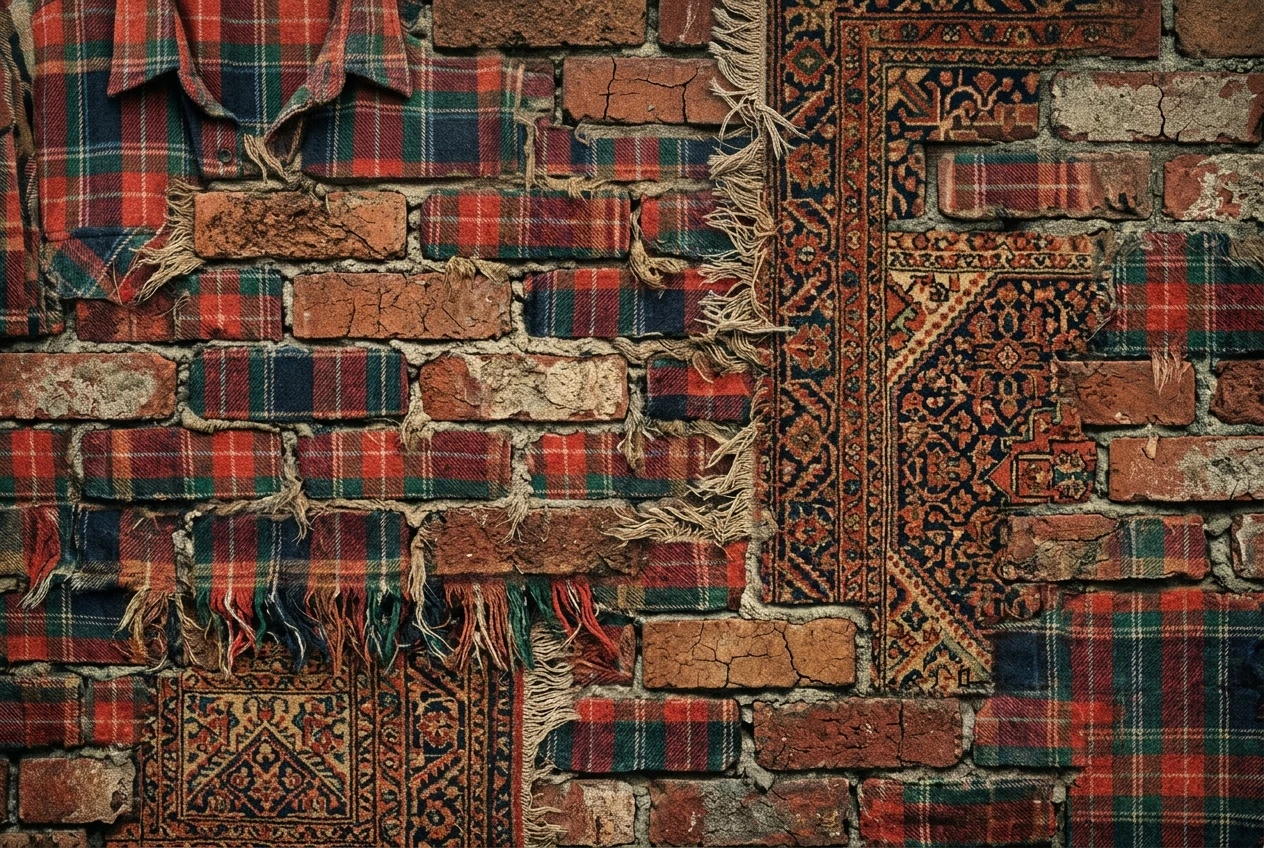
The fix runs backward from what most people try first. Instead of adding more descriptive words to clarify the muddy area, strip the prompt down to the two or three elements that actually matter and let everything else stay simple:
- Pick one textured surface to describe in detail (the jacket, say) and leave everything touching it plain (“smooth background, no pattern”).
- Avoid stacking multiple patterned or textured items in the same part of the frame: a plaid shirt against a brick wall against a patterned rug is three textures fighting for the same inch of canvas.
- Use spacing words like “in front of” and “behind” to tell the model which layer sits where, since depth confusion is often what reads as mud.
Specificity helps once the composition is simple. Specificity applied to an already cluttered scene just gives the model more conflicting detail to resolve badly.
Garbled Text and Logos: Why kre8or.ai Struggles Here and What to Do Instead
Readable text inside a generated image, a street sign, a book cover, a logo, is one of the hardest things for any image model to render, kre8or.ai included. Text isn’t drawn the way a face or a tree is drawn; it’s reconstructed letter by letter from patterns the model has seen, and that reconstruction breaks down fast, especially with longer words or small lettering.
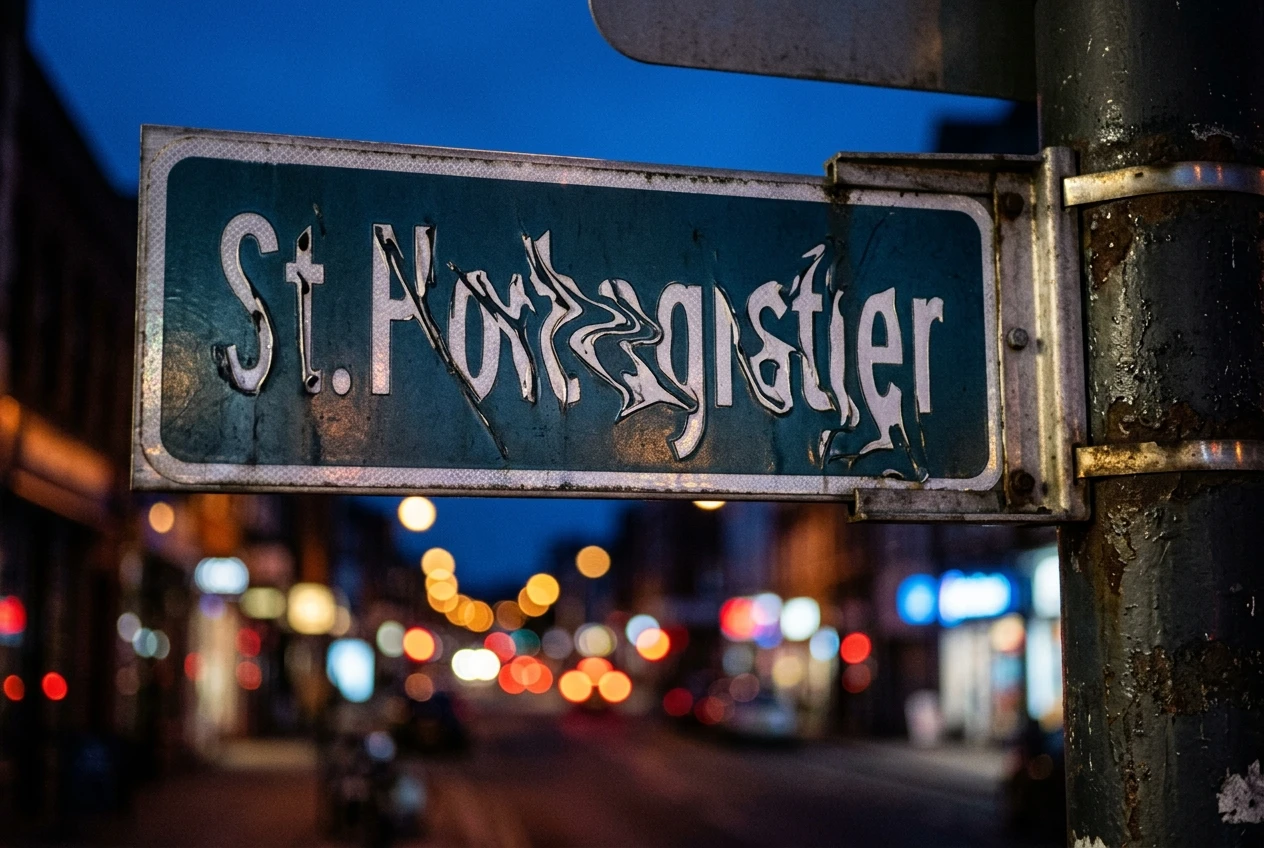
Rather than fighting this directly, work around it:
- Keep any in-image text to a single short word or a few letters, not a sentence.
- Make the text large relative to the rest of the frame, since small text glitches far more than large text.
- If the exact wording matters, plan to add real text afterward in an editing tool rather than asking the generator to render it.
- For logos specifically, describe the shape and color rather than asking the model to replicate a known brand mark, since it will approximate rather than copy accurately, and the approximation is usually where the garbling shows up.
This is one of the few glitches where the fix isn’t a better prompt. It’s knowing which job to hand to the generator and which job to finish by hand.
Warped Backgrounds and Broken Perspective: Fixing Composition Confusion
A background that bends, a horizon line that tilts for no reason, buildings that lean toward each other at impossible angles, these come from a prompt that names a setting without naming a vantage point. “A city street at night” doesn’t tell the model where the camera is standing or how wide the view is, so perspective gets resolved inconsistently across the frame.
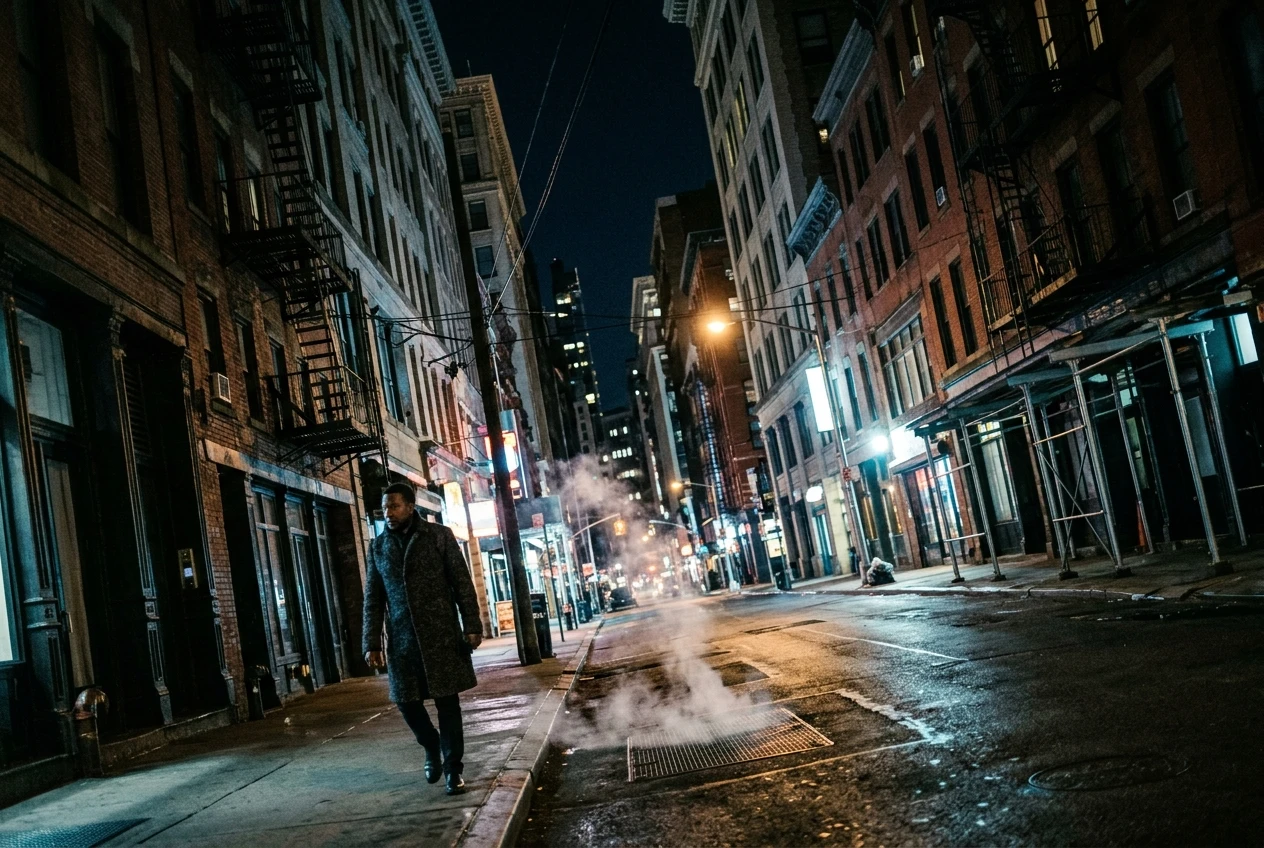
Fix this by giving the scene a camera, even if there’s no literal camera involved:
- Name the shot type: wide shot, eye-level, low angle looking up, aerial.
- Name the distance: “street scene viewed from across the road” versus “close-up street corner.”
- If architecture or straight lines matter, say “straight-on perspective” explicitly, since angled perspective is where lines tend to warp.
- Keep the background description proportional to its importance. A background that’s meant to be a soft blur behind a subject should be described as exactly that, not left open to become a sharp, detailed, and distorted scene competing with the subject.
Building a Troubleshooting Checklist You Can Reuse Every Time
The five glitches above cover almost everything that shows up in a messy render, and they all trace back to the same root cause: a decision the prompt left open. Before you generate, run a quick pass:
- Faces: angle, expression, and light direction named?
- Hands and limbs: both hands accounted for, pose named as active or passive?
- Textures: one detailed surface, everything else kept plain?
- Text: short, large, and only where it’s truly needed?
- Background: a vantage point and distance named, detail level matched to importance?
If you want the fuller framework this checklist is built on, the guide on writing AI art prompts that actually work covers the structure behind all five of these fixes in one place.
Ready to put this checklist to work? Open kre8or.ai and run your next prompt through it before you hit generate.