


How to Batch Generate Matching Assets in kre8or.ai With One Prompt Template
Getting one strong image out of kre8or.ai is a skill. Getting ten that look like they came from the same artist is a different one, and it is the one that matters when you are building an icon pack, a cast of characters, a set of backgrounds or a product mockup series. If you want to know how to batch generate AI images that match, the answer is a prompt that works as a template instead of a one-off sentence.
This article teaches a slot-based system. You lock the words that define the look, turn everything else into swappable slots, and change one slot per run. It assumes you can already write a decent prompt. If you want the fundamentals first, the Graphic Prompts guide covers them, and this piece builds on top.
Why one great image isn’t enough when you need ten
A single image only has to satisfy you. A set has to satisfy the eye of someone looking at all of it at once, and that eye catches differences you never noticed in isolation: a line weight that changes from icon to icon, a light source that moves, a palette that warms up halfway through.
The usual way to make a set is to rewrite the prompt for each new image. That fails for a simple reason: every rewrite changes several things at once. You meant to change the subject, but you also reworded the style description, dropped an adjective, and added a new one. The output shifts in ways you cannot trace back to a cause.
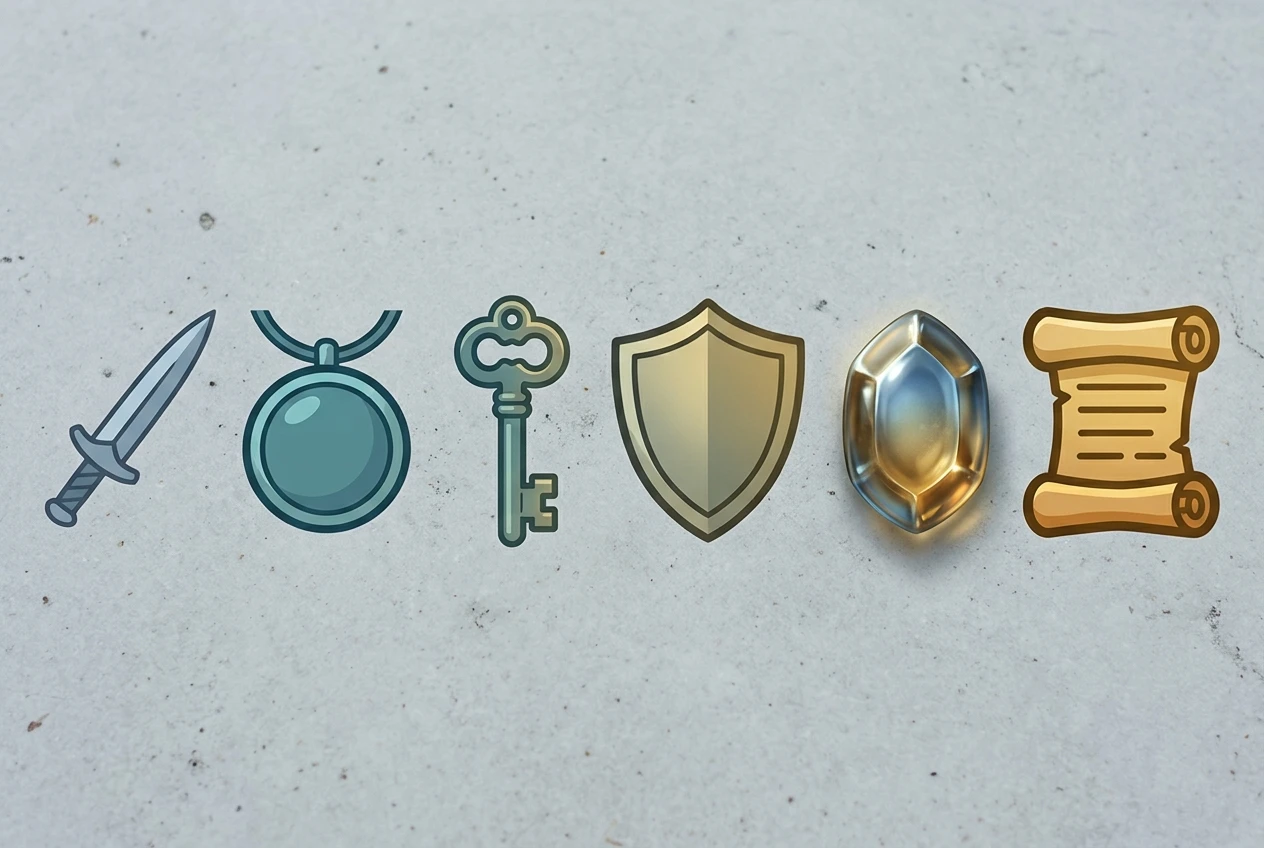
A template removes that problem. The words that create the style stay identical in every run, so when two images differ, you know the difference came from the one slot you changed. That makes the set consistent and makes problems easy to diagnose.
Split your prompt into locked parts and swappable slots
Take a prompt that already gives you a result you like and sort every phrase into one of two groups.
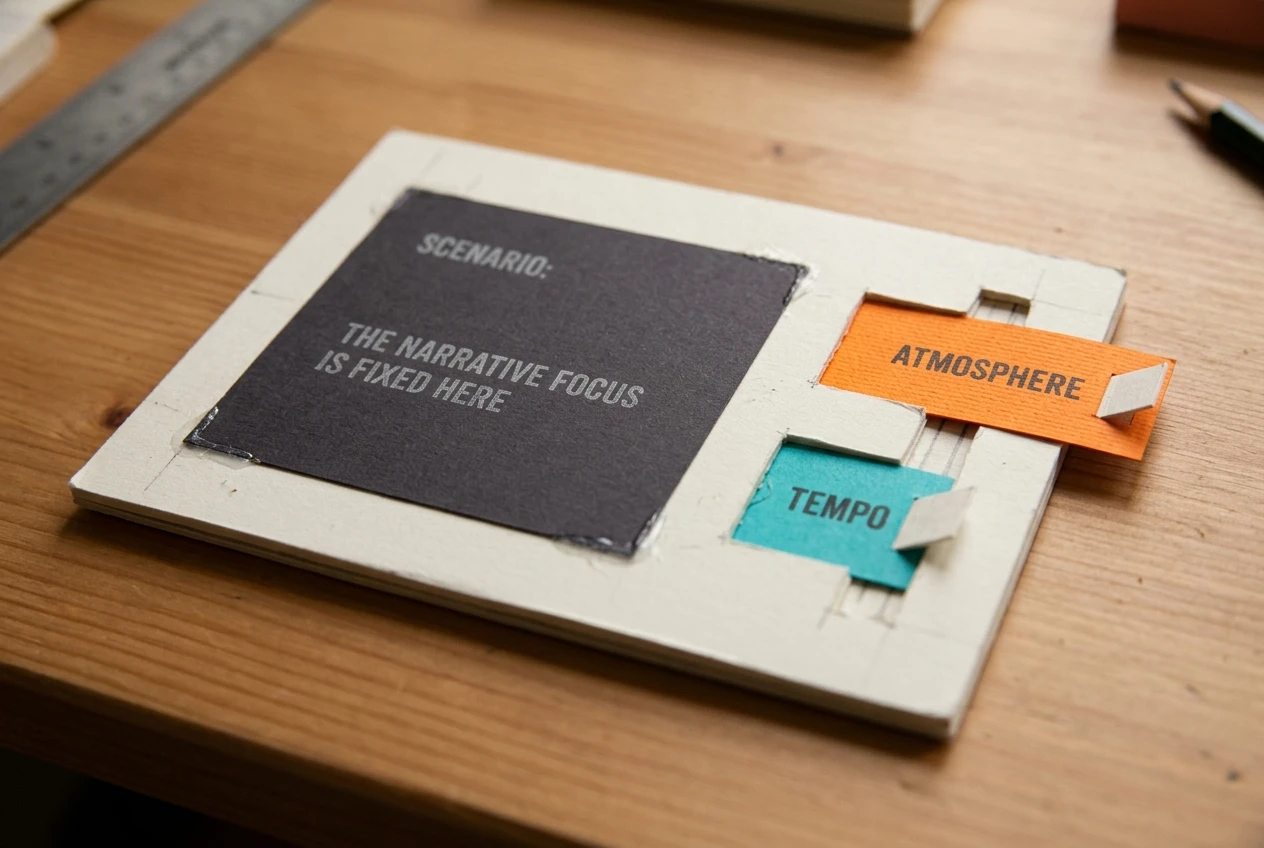
Locked parts define how the asset looks and do not change across the set:
- The medium or rendering style (flat vector, pixel art, soft 3D render, ink illustration)
- Line and edge treatment (thick dark outline, no outline, soft edges)
- Lighting direction and quality
- Palette rules (limited palette, muted tones, high contrast)
- Framing and background (centered, plain pale background, square composition)
- Exclusions (no text, no border)
Slots define what the asset is and are the only things you change:
- Subject (the object, character or scene)
- One accent attribute (a color, a material, a mood)
- Optionally, a pose, an angle or a time of day
The test for each phrase is simple: if this changed between two images in the set, would the set still look unified? If yes, it is a slot. If the set would look mismatched, it is locked.
Keep the number of slots small. Two or three is plenty. Every extra slot is another variable that can pull the output away from the shared style.
Build your master template step by step
Write the template in a fixed order so you can read it at a glance and so nothing gets accidentally reworded.
- Start with your best single prompt. Pick the image from your earlier experiments that best represents the look you want for the whole set.
- Pull out the subject. Replace it with a slot marker such as {SUBJECT}. Marker names are for you, and you swap in real words before each run.
- Pull out the accent attribute. If your best image had a blue glow or a wooden texture, replace that with {ACCENT}.
- Group the locked words into one block. Put the style, outline, lighting, palette, framing and exclusions together in a single sentence or phrase, and do not reorder them later.
- Put the slots at the front. Place the subject near the start of the prompt and the locked block after it, so the subject is stated clearly while the style block stays one consistent chunk.
- Write it down as version 1. Save the template in a document, not only in the generation box, so you copy from the same source every time.
The result looks like this:
{SUBJECT} with {ACCENT} highlights, [LOCKED STYLE BLOCK]
The whole system rests on one habit: you never edit the locked block mid-batch. If you want to improve it, you finish the batch, then create version 2 and start a new set.
Change one slot at a time: a simple variation grid
With a template in hand, plan your batch as a grid before you generate anything. Rows are one slot’s values, columns are another’s.
A small grid for a set of items might look like this:
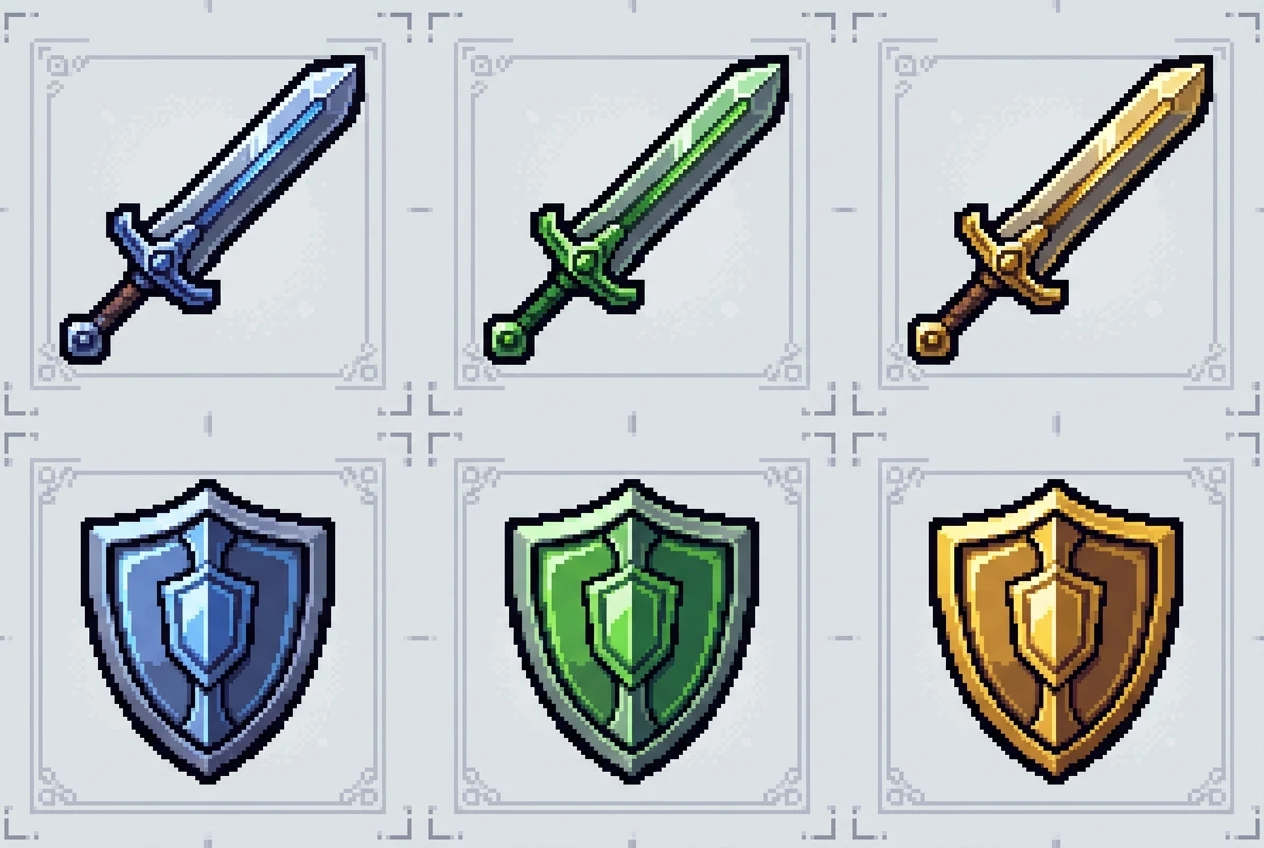
Accent: blue Accent: green Accent: gold Subject: sword run 1 run 2 run 3 Subject: shield run 4 run 5 run 6
Run the first row fully before moving on. Within a run, change exactly one slot compared with the run before it. That discipline gives you a reference point: if run 2 looks off, the only candidate is the green accent. If you had changed both subject and accent, you would be guessing.
Start with a single slot varying (six subjects, one accent) before you add a second dimension. A one-dimensional batch is the quickest way to find out whether your locked block is strong enough to hold the set together. If it holds across six subjects, adding color variations is low risk.
Keep a prompt log so every batch is repeatable
A set is rarely finished in one sitting. You will want to add a seventh icon next week, or regenerate a character that came out wrong, and you will need the exact words that produced the others.
Keep a simple log, one entry per batch, with these fields:
- Batch name, such as “Fantasy items, set A”
- Template version, such as v1 or v2
- Locked block, pasted in full
- Slot values used, listed per run
- Result notes, one line each: kept, rejected, or drifted
- What you changed next, if you revised anything
A spreadsheet works, and so does a plain text file. The format matters less than the habit of pasting the exact prompt text instead of summarizing it. “Same as before but bluer” is useless a week later.
The log also protects you from a common mistake: improving the template halfway through a set and ending up with two different styles in one collection. Because each entry records the template version, you can see at once which images belong together.
Worked example: a set of matching game icons from one template
Here is the system applied to a set of six fantasy game item icons. The style choice is 16-bit pixel art, and the pixel art vocabulary guide explains the terms worth using in a locked block like this one.
The locked block:
16-bit pixel art game item icon, thick dark outline, three-tone shading with light from the top left, limited palette, centered on a plain flat pale gray background, no text, no ground shadow
The slots:
- {SUBJECT}: the item
- {ACCENT}: the highlight color
The master template (v1):
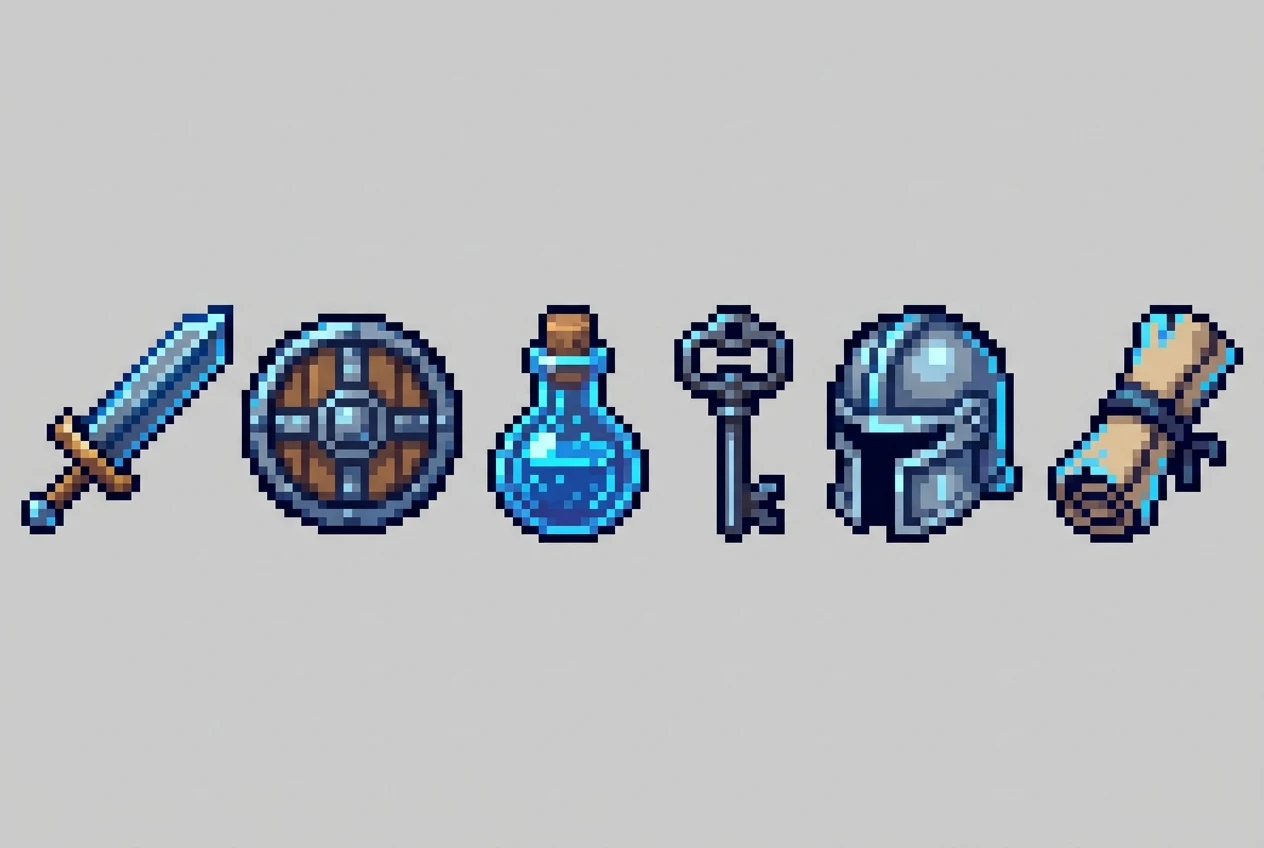
{SUBJECT} with {ACCENT} highlights, 16-bit pixel art game item icon, thick dark outline, three-tone shading with light from the top left, limited palette, centered on a plain flat pale gray background, no text, no ground shadow
Batch 1, subject varies, accent fixed at blue:
- short sword with blue highlights
- round shield with blue highlights
- potion bottle with blue highlights
- iron key with blue highlights
- knight helmet with blue highlights
- rolled scroll with blue highlights
Read only the subject and accent at the front of each prompt and you can see what changed. Everything after the comma is identical, character for character. Paste the template, swap the two slot values, generate, and log the result.
Batch 2, accent varies, subject fixed. Once the six items look like a family, take your favorite and change only the accent: blue, green, gold, red. This gives you rarity tiers or team colors without touching the style.
Check each result against the same questions: Is the outline the same weight? Does the light come from the top left? Is the background the same gray? Do the palettes feel related? Items that fail go into the drift fixes below, not into a rewrite of the template.
Fixing the variations that drift off style
Some runs will come back looking like they belong to another set. A slot value usually causes this: some subjects carry strong visual associations that overpower the style words. A “potion bottle” may pull toward a glossy, realistic render, while “iron key” may produce a flat shape that ignores your shading rules.
Work through these fixes in order, and change one thing at a time so you can see which one worked:
- Rephrase the slot value to match the style. Instead of “potion bottle,” try “stylized potion bottle” or “small round potion flask.” A slot value that already sounds like the medium creates less conflict.
- Shorten the slot value. Long descriptions bring in extra visual detail that competes with the locked block. Use the fewest words that identify the subject.
- Remove conflicting words. If a slot value includes terms like “realistic,” “glossy” or “detailed,” they work against a flat or pixel style.
- Repeat the key style term once at the end. Adding “pixel art” again as the last phrase can reinforce the medium for stubborn subjects. If it works, add it to the template as v2 and rerun the whole set so everything matches.
- Regenerate once before changing anything. A single odd result can be an outlier. If a second run of the identical prompt comes back fine, no fix is needed.
Whatever you change, record it in the log. If a fix applies to only one subject, treat it as a note for that slot value. If it improves the whole set, it belongs in the next template version.
Turn your template into a reusable asset library
Once a template produces a set you are happy with, it is worth more than the images. You can reuse the same structure for any asset type by replacing the locked block and keeping the slot pattern.
A small library might include:
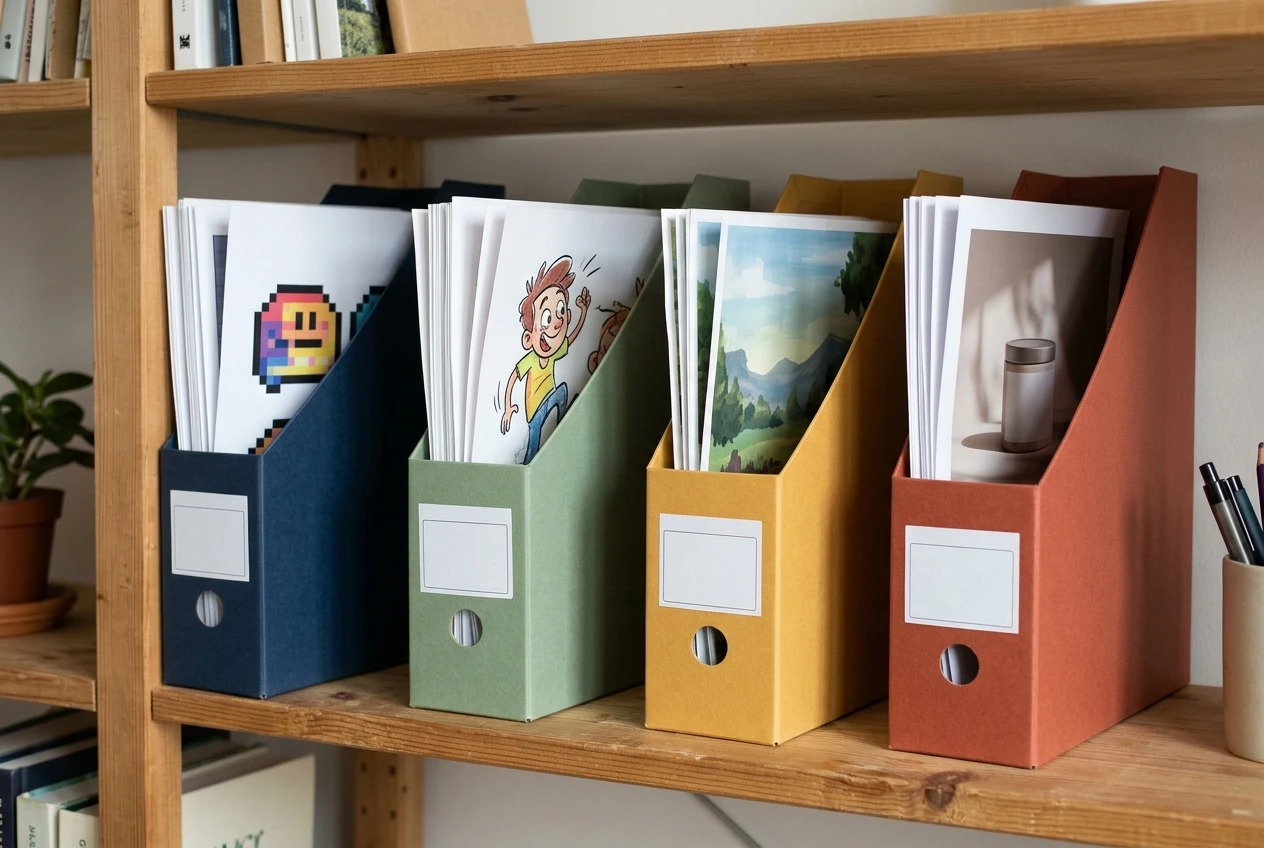
- Icon template: {SUBJECT} with {ACCENT} highlights, plus a locked icon-style block
- Character template: {CHARACTER TYPE} in {OUTFIT COLOR}, {EXPRESSION}, plus a locked block for art style, framing and background
- Background template: {LOCATION} at {TIME OF DAY}, plus a locked block for rendering style, palette and composition
- Product mockup template: {PRODUCT} on {SURFACE}, plus a locked block for lighting, camera angle and backdrop
Store each one in your document with its version number, its locked block, and a short list of slot values that have worked. Over time, you build a catalog of looks you can reproduce on demand, and starting a new set means opening the right template and filling in the slots instead of writing from scratch.
Treat the locked block as the signature of a project. Give each project its own name and keep its template separate from the others, so a pixel icon pack and a soft watercolor background set never share style words by accident.
Start your first batch
The system is small enough to try in one session: write the template, plan a six-item grid, change one slot per run, and log what you get. Try the template in kre8or.ai: sign up through the link, then run your first six-variation batch from the worked example.